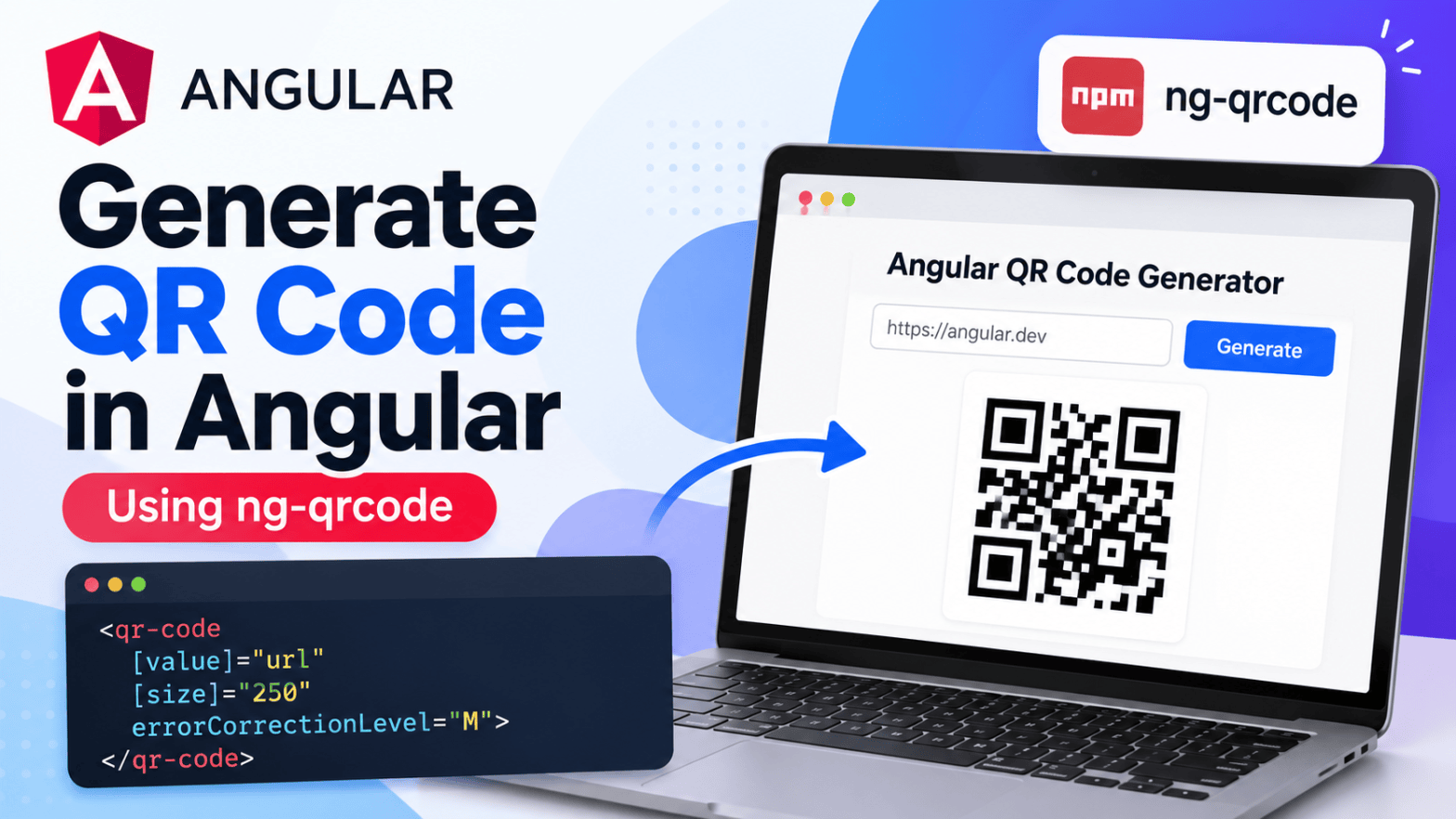
QR codes are useful for sharing URLs, product information, contact details, event tickets, and more. In Angular, you can generate them with the ng-qrcode package instead of implementing QR encoding yourself.
In this tutorial, we’ll install ng-qrcode, add its component to an Angular application, generate QR codes from dynamic input, and review customization options and production considerations.
1. Create an Angular application
If you already have an Angular project, skip this step. Otherwise, create a new application with the Angular CLI:
ng new angular-qr-code-democd angular-qr-code-demo
2. Install ng-qrcode
Install the package using npm:
npm install ng-qrcode
Choose a package version compatible with your Angular version. Check the package’s current README and version information on npm before installing, especially in an existing project.
3. Import the QR code component
For a standalone Angular component, import QrCodeComponent from the package. The example below also imports FormsModule so the template can use ngModel.
import { Component } from '@angular/core';import { FormsModule } from '@angular/forms';import { QrCodeComponent } from 'ng-qrcode';@Component({ selector: 'app-root', standalone: true, imports: [FormsModule, QrCodeComponent], templateUrl: './app.component.html', styleUrl: './app.component.css',})export class AppComponent { qrValue = 'https://angular.dev';}
If your application uses NgModules, follow the package documentation for the correct import setup for your installed version.
4. Generate your first QR code
Add the QR code component to app.component.html:
<h2>Generate a QR Code in Angular</h2><qr-code [value]="qrValue" [size]="250" errorCorrectionLevel="M"></qr-code>
The value property is the text or URL to encode, size sets the requested dimensions, and errorCorrectionLevel configures the QR code’s error-correction level. Confirm supported inputs in the documentation for your installed package version.
5. Generate QR codes from user input
For a more practical example, let users enter text or a URL and update the QR code as they type. Replace the template with:
<div class="qr-container"> <h2>Angular QR Code Generator</h2> <label for="qrInput">Enter text or URL</label> <input id="qrInput" type="text" [(ngModel)]="qrValue" placeholder="Enter a URL or text" /> @if (qrValue.trim()) { <qr-code [value]="qrValue" [size]="250" errorCorrectionLevel="M"> </qr-code> } @else { <p>Please enter some text to generate a QR code.</p> }</div>
Then add some basic styling in app.component.css:
.qr-container { display: flex; flex-direction: column; align-items: center; gap: 16px; padding: 24px;}.qr-container input { width: 100%; max-width: 400px; padding: 12px; border: 1px solid #ccc; border-radius: 6px; font-size: 16px;}.qr-container qr-code { display: block;}
Because the template uses two-way binding, Angular updates qrValue when the input changes, and the QR component receives the new value. The library handles rendering; Angular handles the data binding.
6. Customize QR code output
You can configure the QR code’s size and error-correction level. For example:
<qr-code [value]="qrValue" [size]="300" errorCorrectionLevel="H"></qr-code>
Common QR error-correction levels are L (low), M (medium), Q (quartile), and H (high). Higher error correction adds redundancy and may help a code remain readable when partly obscured, but can make the encoded pattern denser. Check the package README for the exact input names and supported options in your version.
7. Practical use cases
- Restaurant menus: Link customers to a digital menu.
- Product information: Encode a product page or documentation URL.
- Event tickets: Encode a ticket reference or check-in URL. Validate ticket identifiers on the server rather than trusting the QR code alone.
- Contact sharing: Share contact details or a professional profile link.
8. Best practices
- Validate input: Avoid generating codes from empty or unintended values.
- Use sufficient size and contrast: A dark QR code on a light background is generally easy to scan.
- Test on real devices: Check scanning with different phones and camera apps.
- Keep sensitive data out: QR codes can be copied by anyone who can see them. Don’t encode passwords, private tokens, or confidential information directly.
- Check destinations: For external links, make the destination clear to users before they open it.
9. Troubleshooting
The qr-code element isn’t recognized
Verify that QrCodeComponent is imported into your standalone component or the appropriate module, according to the documentation for your installed package version.
The QR code doesn’t update
Check that the template binds the value property correctly:
<qr-code [value]="qrValue"></qr-code>
If you use ngModel, ensure that FormsModule is imported. If you see a browser error such as global is not defined, check the package’s current README and issue tracker for version-specific compatibility notes before applying a workaround.
Conclusion
With ng-qrcode, you can add QR code generation to an Angular application with a component and a small amount of template code. The same pattern can support digital menus, product pages, event workflows, and contact sharing.
For installation instructions, version compatibility, and the full list of supported options, visit ng-qrcode on npm.

