Using bcrypt to store password in NodeJS.

Before starting the post I would like to assume few things:

  1. You have knowledge about NodeJS.
  2. You have setup sample NodeJS app using express and mongoDB

In case you have no idea what I am talking about then its best to know about them. Few links below will help.

Now let’s get to post…

Install bcryptjs:

$npm install bcryptjs

Hash your password:

Instead of storing the passwords in plain text we will use a method called hash in bcryptjs to generate hash. Hashing or password hashing is a process used to turn or transform your original plain string into another encrypted string. And this new string or hash is stored in DB. Even if someone finds the hash they won’t be able to login. This is the most secure way.

bcrypt.hash(myPassword, 10)

I would prefer you spend some time to read more about the plugin here.

Below is my sample code which creates a user and store the hash for password.

const bcrypt = require("bcryptjs");

exports.createUser = (req, res, next) => {
  bcrypt.hash(req.body.password, 10).then(hash => {
    const user = new User({
      username: req.body.username,
      password: hash,
      displayName: req.body.displayName,
      roles: req.body.roles,
    });
    user
        .save()
        .then(result => {
          res.status(201).json({
            message: "User created!",
            result: result
          });
        })
        .catch(err => {
          res.status(500).json({
            message: "Invalid authentication credentials!",
            error: err
          });
        });
  });
};

Below is the sample code for user login.

const bcrypt = require("bcryptjs");
const User = require("../models/user");

exports.userLogin = (req, res, next) => {
  let fetchedUser;
  User.findOne({ username: req.body.username })
      .then(user => {
        if (!user) {
          return res.status(401).json({
            message: "Auth failed"
          });
        }
        fetchedUser = user;
        return bcrypt.compare(req.body.password, user.password);
      })
      .then(result => {
        if (!result) {
          return res.status(401).json({
            message: "Authentication failed, please check your login credentials."
          });
        }
        res.status(200).json({
          message: "Login success."
        });
      })
      .catch(err => {
        return res.status(401).json({
          message: "Invalid authentication credentials!",
          error: err
        });
      });
};

Here we use the compare method in bcrypt to check if the entered user password matches with the stored password. It’s valid only if they match. You can also observe I am returning few responses with status codes at each step of the way.

Below is the schema for user just in case.

const mongoose = require("mongoose");
const uniqueValidator = require("mongoose-unique-validator");

const userSchema = mongoose.Schema({
  username: { type: String, required: true, unique: true },
  password: { type: String, required: true },
  displayName: { type: String },
  roles: { type: [String], required: true }
});

userSchema.plugin(uniqueValidator);

module.exports = mongoose.model("User", userSchema);

Define schema, apply plugin and more in Mongoose.

I’ve been learning Mongoose and would like to share few notes. Let’s say we have Invoice schema like below defined in mongoose.

const mongoose = require("mongoose");

const invoiceSchema = mongoose.Schema({
  creationDate: {type: Date, default: Date.now},
  description: {type: String, required: true},
  amount: {type: String, required: true}
});

To this schema I would like to add a new property / key / field that will define the status of the invoice, and this new property takes predefined values, like, an enum.

status: {type: String, enum: ["New", "Assigned", "Completed"]}

Above status is the new property added to my invoice scheme. And mongoose creates a validator that checks if the value is in the given array of strings.

In a real world case we would like to know who created an invoice. For this we need to store the user id (invoice creator id) for each document, given that we have User schema already defined. Below is the property creator that we can define for such cases…

creator: {type: mongoose.Schema.Types.ObjectId, ref: "User", required: true}

Here the property creator is of type ObjectId and it refers to User schema.

Every invoice will have a number, and let’s say we need to maintain an auto-increment number for each document created that will serve as an invoice number. For this we can make use of plugins, we can either create a plugin ourselves or use an existing one. I found one plugin for our use-case called mongoose-auto-increment. Let us use this package as our plugin.

const autoIncrement = require("mongoose-auto-increment");
...
autoIncrement.initialize(mongoose.connection);
invoiceSchema.plugin(autoIncrement.plugin, { model: 'Invoice', field: 'orderNo', startAt: 1 });

Above code will add a new property called orderNo to our schema and will use the plugin mongoose-auto-increment to auto-increment (startAt is set to 1 so we start from 1 … ) the property every time we insert a new document of this type.

This is all we wanted for now!, let us look at the full schema now.

const mongoose = require("mongoose");
const autoIncrement = require("mongoose-auto-increment");

const invoiceSchema = mongoose.Schema({
  creationDate: {type: Date, default: Date.now},
  description: {type: String, required: true},
  amount: {type: String, required: true},
  status: {type: String, enum: ["New", "Assigned", "Completed"]},
  creator: {type: mongoose.Schema.Types.ObjectId, ref: "User", required: true}
});

autoIncrement.initialize(mongoose.connection);
invoiceSchema.plugin(autoIncrement.plugin, { model: 'Invoice', field: 'orderNo', startAt: 1 });

module.exports = mongoose.model("Invoice", workOrderSchema);

Note: To use the plugin mongoose-auto-increment you first need to install it $npm install mongoose-auto-increment.

Install npm packages on Elastic Beanstalk aws service instance globally.

First off I am going to assume three things…

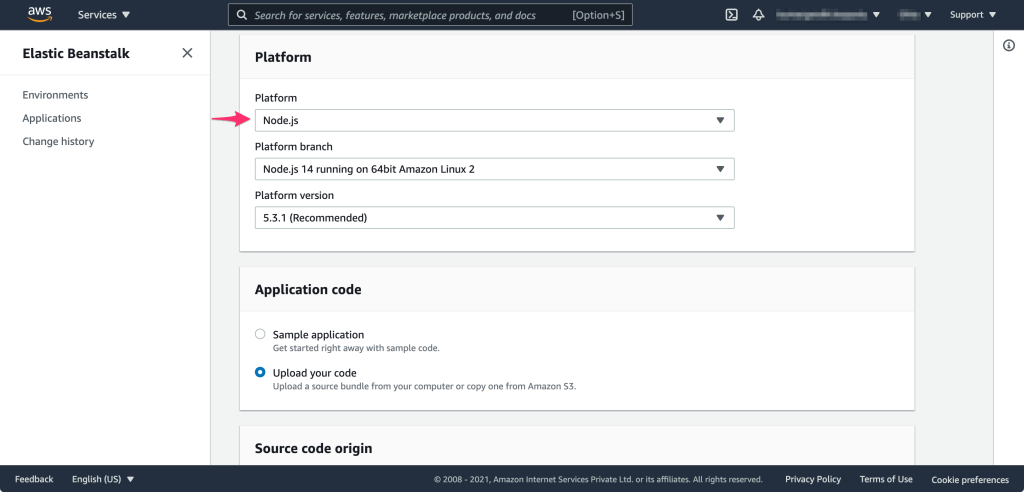
  1. You know how to create an Elastic Beanstalk aws service instance with Node.js as the platform.
  2. You know how to create a key file (.pem) on aws console.
  3. You know how to login (ssh) to the instance using the key file.

Now the question, why would you need to install npm packages after the setup or after creating the instance. During the setup when you select the option to upload the source code (.zip) you are providing the package.json (npm packages are defined here) file from which all the packages are installed and available in node_modules. But what if some package is required to be installed at global level.

Elastic Beanstalk – Platform – Node.js

Below are the steps I used to install a package called html-pdf globally to the instance.

  1. Login to the instance.
    • $ssh -i pem/awsinstancekeypairname2.pem ec2-user@INSTANCE_NAME.com
  2. Switch to root user.
    • $sudo su
  3. Set path to node location
    • $export PATH=$PATH:/opt/elasticbeanstalk/node-install/node-v10.17.0-linux-x64/bin/
    • Note: Above node version and path of the node on you elastic beanstalk instance might be different.
  4. Install html-pdf package globally.
    • $npm install -g html-pdf
  5. Now link the installed package.
    • $npm link html-pdf
  6. Restart the app server / instance and you are done.

Fix for ‘Host key verification failed’ error.

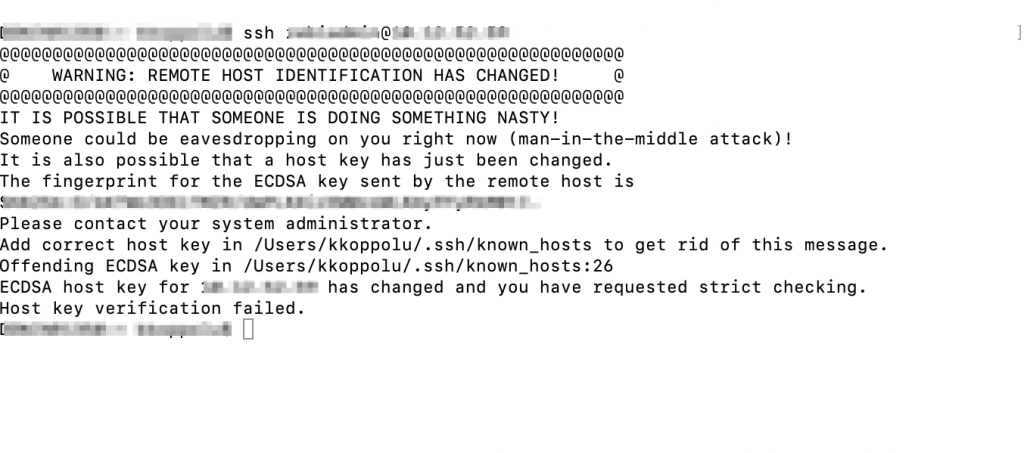
When we login to a host using ssh we might come across the error ‘Host key verification failed’. If you see additional message saying the ‘host key for XX.XX.XX has changed’ then the fix i am giving will work for you.

You see this error because the key of the host system is basically changed and this new key on the host system does not match with the one that is locally saved.

Error on terminal

The fix is to remove the host from the known hosts list (/.ssh/known_hosts) on your local system. Below is the command.

$ssh-keygen -R XX.XX.XX

After removing the host you can try login again. $ssh userName@XX.XX.XX and you are logged in.

Note: XX.XX.XX – Is the host DNS, like, 10.10.10.10. And the fix works only on Mac.