Create Heat map using d3.js with Angular.

Checkout the previous post to get started with d3.js in Angular application.

In this post we will talk about creating a heat map chart using the capabilities of d3.js.

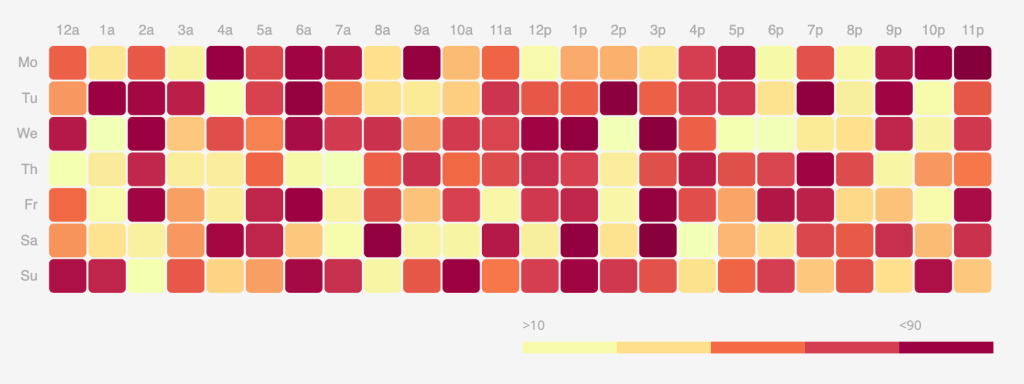
Just like any chart or graph, heat map is also a charting technique to visualize data in two dimensions w.r.t magnitude of an occurrence of an event represented with a color schema, typically the color schema varies from low to high depending on the magnitude.

Heat map

Create a new component.

import { Component, ElementRef, Input, OnInit, ViewChild } from '@angular/core';
import * as d3 from 'd3v6';
import * as _ from 'lodash';
import {
    HeatMap_ColorRange,
    HeatMap_DomainRange,
    HeatMap_Groups,
    HeatMap_Variables,
} from '../commom/constants';
import { HeatMapDataItemInterface } from '../commom/interfaces/heat-map-data-item.interface';
import { ChartsDataService } from '../commom/services/charts-data.service';

@Component({
    selector: 'app-heat-map',
    templateUrl: './heat-map.component.html',
    styleUrls: ['./heat-map.component.scss'],
})
export class HeatMapComponent implements OnInit {
    @ViewChild('chartContainer', { static: true }) chartContainer: ElementRef;
    @Input() chartId: string = 'heatmap';
    @Input() width: number = 600;
    @Input() height: number = 450;
    _chartData: HeatMapDataItemInterface[];

    private margin = { top: 40, right: 20, bottom: 20, left: 40 };
    private _chart = {
        svg: null,
        mainContainer: null,
        data: [],
        daysCount: 30,
        datesStrAsPerRange: '',
    };

    element!: HTMLElement;

    constructor(private service: ChartsDataService) {
        this._chart.data = service.getHeatMapData();
    }

    ngOnInit(): void {
        this.createHeatmap();
    }

    createHeatmap() {
        // set the dimensions and margins of the graph
        this.width =
            this.chartContainer.nativeElement.getBoundingClientRect().width;
        const widgetWidth =
            (this.chartContainer.nativeElement.getBoundingClientRect().width *
                60) /
            100;
        let heatMapHeight = Math.round(widgetWidth / 3.167);
        this.width = widgetWidth - this.margin.left - this.margin.right;
        this.height = heatMapHeight - this.margin.top - this.margin.bottom;
        const legendWidth = 80;

        /**
         * Remove all the elements in d3 charts if already exist
         */
        d3.select('#' + this.chartId)
            .selectAll('*')
            .remove();
        d3.select('#' + this.chartId + '_legend')
            .selectAll('*')
            .remove();

        /**
         * Mouse over function handler for the treemap nodes
         * Here we highlight the circle with the box shadow css
         */
        const mouseover = function () {
            d3.select(this).style('stroke', 'black');
        };

        /**
         * Mouse out handler
         */
        const mouseout = function () {
            d3.select(this).style('stroke', 'none');
        };

        // append the svg object to the body of the page
        const svg = d3
            .select('#' + this.chartId)
            .append('svg')
            .attr('width', this.width + this.margin.left + this.margin.right)
            .attr('height', this.height + this.margin.top + this.margin.bottom)
            .append('g')
            .attr(
                'transform',
                'translate(' + this.margin.left + ',' + this.margin.top + ')'
            );

        let groupNames = Object.values(HeatMap_Groups);
        let variableNames = Object.values(HeatMap_Variables);

        // Build X scales and axis:
        const x = d3
            .scaleBand()
            .range([0, this.width])
            .domain(groupNames)
            .padding(0.05);
        svg.append('g')
            .style('font-size', 12)
            .style('color', '#ADADAD')
            .attr('transform', 'translate(0, -5)')
            .call(d3.axisTop(x).tickSize(0))
            .select('.domain')
            .remove();

        // Build Y scales and axis:
        const y = d3
            .scaleBand()
            .range([this.height, 0])
            .domain(variableNames)
            .padding(0.05);
        svg.append('g')
            .style('font-size', 12)
            .style('color', '#ADADAD')
            .attr('transform', 'translate(-5, 0)')
            .call(d3.axisLeft(y).tickSize(0))
            .select('.domain')
            .remove();

        const myColor = d3
            .scaleLinear<string>()
            .range(HeatMap_ColorRange)
            .domain(HeatMap_DomainRange);

        // add the squares
        const cards = svg
            .selectAll()
            .data(this._chart.data, function (d) {
                return d.group + ':' + d.variable;
            })
            .enter()
            .append('rect')
            .attr('x', function (d) {
                return x(d.group);
            })
            .attr('y', function (d) {
                return y(d.variable);
            })
            .attr('rx', 4)
            .attr('ry', 4)
            .attr('value', function (d) {
                return d.value;
            })
            .attr('width', x.bandwidth())
            .attr('height', y.bandwidth())
            .attr('fill', 'white')
            .style('fill', function (d) {
                if (d.value === null || isNaN(d.value)) {
                    return '#C3C3C3';
                }
                return myColor(d.value);
            })
            .style('stroke-width', 2)
            .style('stroke', 'none')
            .style('opacity', 1)
            .on('mouseover', mouseover)
            .on('mouseout', mouseout)
            .on('mouseleave', mouseout);

        // append the legend svg object to the body of the page
        const legend = d3
            .select('#' + this.chartId + '_legend')
            .append('svg')
            .attr(
                'transform',
                'translate(' +
                    +(
                        this.width -
                        HeatMap_ColorRange.length * legendWidth +
                        this.margin.left
                    ) +
                    ',0)'
            )
            .attr('width', legendWidth * HeatMap_ColorRange.length)
            .attr('height', 35);

        const domainRange: string[] = HeatMap_DomainRange.map(
            (item, index, items) => {
                const domain = '' + item;
                if (index === 0) {
                    return '>' + domain;
                } else if (index === items.length - 1) {
                    return '<' + domain;
                }
                return '';
            }
        );
        legend
            .selectAll()
            .data(domainRange, function (d) {
                return d;
            })
            .enter()
            .append('g')
            .attr('class', 'g-legend')
            .append('rect')
            .attr('x', function (d, i) {
                return legendWidth * i;
            })
            .attr('y', 20)
            .attr('rx', 0)
            .attr('ry', 0)
            .attr('width', legendWidth)
            .style('width', '' + legendWidth + 'px')
            .attr('height', 10)
            .style('height', '10px')
            .style('fill', function (d, i) {
                return '' + HeatMap_ColorRange[i];
            });

        legend
            .selectAll('.g-legend')
            .append('text')
            .attr('class', 'g-legend-text')
            .text(function (d) {
                return '' + d;
            })
            .attr('x', function (d, i) {
                if (i === 0) {
                    return 0;
                }
                return legendWidth * i;
            })
            .attr('y', 10)
            .style('font-size', 11)
            .style('fill', '#ADADAD');

        legend.exit().remove();
    }
}

Code is pretty much self explanatory, there are two scales and axis (x, y) and the data is represented with groups, variables and domain range (color schema).

Check out the complete Angular project code on GitHub repo.

Hope you like the post!.

In the next post I will be trying transitions (animations), responsiveness and tooltips for the bar chart, so be sure to check it out.

Developing charts using d3.js in Angular.

d3.js is one of the popular library to draw charts as per your requirements or needs. The library gives the developer with many options or freedom to draw the charts. Their gallery has many incredible examples and the community around this library is also quite impressive.

Its super easy to get started. First off you need some basic knowledge about SVG and CSS. There are many posts or articles out there for you to explore. But in this post I will be talking about using d3.js to develop a simple bar chart in Angular application.

Dependencies
  1. A sample angular project to get started or use @angular/cli to create one, again many posts available online to do this.
  2. Install D3 packages.
    1. $npm i d3
    2. $npm i -D @types/d3
Bar chart

Create a new bar chart component $ng g c BarChart. A bar chart typically has two axis (X, Y) and the bars.

import {
    Component,
    OnInit,
    Input,
    ChangeDetectionStrategy,
    ChangeDetectorRef,
    ViewChild,
    ElementRef,
} from '@angular/core';
import * as d3 from 'd3v6';
import cloneDeep from 'lodash/cloneDeep';
import { DataItemInterface } from '../commom/interfaces/data-item.interface';
import { ChartsDataService } from '../commom/services/charts-data.service';

@Component({
    selector: 'app-bar-chart',
    templateUrl: './bar-chart.component.html',
    styleUrls: ['./bar-chart.component.scss'],
    changeDetection: ChangeDetectionStrategy.OnPush,
})
export class BarChartComponent implements OnInit {
    @ViewChild('chartContainer', { static: true }) chartContainer: ElementRef;
    @Input() chartId: string = 'bar';
    @Input() width: number = 600;
    @Input() height: number = 450;
    _chartData: DataItemInterface[];

    private margin = { top: 20, right: 20, bottom: 35, left: 40 };
    private _chart = {
        svg: null,
        xAxis: null,
        yAxis: null,
        xScale: null,
        yScale: null,
        x: null,
        y: null,
        mainContainer: null,
        bars: null,
    };

    get barWidth(): number {
        {
            return this.width - this.margin.left - this.margin.right;
        }
    }

    get barHeight(): number {
        {
            return this.height - this.margin.top - this.margin.bottom;
        }
    }

    constructor(
        private _cd: ChangeDetectorRef,
        private dataService: ChartsDataService
    ) {
        this._chartData = dataService.getData(22);
        this._cd.markForCheck();
    }

    ngOnInit(): void {
        this.initChart();
        this.draw();
        this._cd.markForCheck();
    }

    @Input()
    set chartData(items: DataItemInterface[]) {
        if (items) {
            this._chartData = cloneDeep(items);
            this.draw();
        }
    }

    get chartData(): DataItemInterface[] {
        return this._chartData;
    }

    private initChart() {
        this._chart.svg = d3.select('#bar').select('svg');
        this._chart.xScale = d3.scaleBand();
        this._chart.yScale = d3.scaleLinear();
        this.setSVGDimensions();
        this._chart.mainContainer = this._chart.svg
            .append('g')
            .attr(
                'transform',
                `translate(${this.margin.left}, ${this.margin.top})`
            );
        this._chart.y = this._chart.mainContainer
            .append('g')
            .attr('class', 'axis axis--y');
        this._chart.x = this._chart.mainContainer
            .append('g')
            .attr('class', 'axis axis--x');
    }

    private setSVGDimensions() {
        const rect = this.chartContainer.nativeElement.getBoundingClientRect();
        this.width = rect.width;
        this._chart.svg.style('width', this.width).style('height', this.height);
    }

    private draw() {
        this.setAxisScales();
        this.drawAxis();
        this.drawBars();
    }

    private setAxisScales() {
        this._chart.xScale = d3.scaleBand();
        this._chart.yScale = d3.scaleLinear();

        this._chart.xScale
            .rangeRound([0, this.barWidth])
            .padding(0.1)
            .domain(this.chartData.map((d) => d.name));
        this._chart.yScale
            .range([this.barHeight, 0])
            .domain([0, Math.max(...this.chartData.map((x) => x.value))]);
        this._chart.xAxis = d3.axisBottom(this._chart.xScale);
        this._chart.yAxis = d3.axisLeft(this._chart.yScale);
    }

    private drawAxis() {
        this._chart.y
            .attr('transform', `translate(0, 0)`)
            .call(this._chart.yAxis);
        this._chart.x
            .attr('transform', `translate(0, ${this._chart.yScale(0)})`)
            .call(this._chart.xAxis);
    }

    private drawBars() {
        const calcBarY = (yPos) => {
            return !yPos ? this._chart.yScale(0) - 1 : this._chart.yScale(yPos);
        };
        const calcBarHeight = (yPos) =>
            Math.max(0, this._chart.yScale(0) - calcBarY(yPos));

        this._chart.bars = this._chart.mainContainer
            .selectAll('.bar')
            .remove()
            .exit()
            .data(this.chartData)
            .enter()
            .append('rect')
            .attr('class', 'chart-bar');

        this._chart.bars
            .attr('x', (d) => this._chart.xScale(d.name))
            .attr('y', (d) => this._chart.yScale(d.value))
            .attr('width', this._chart.xScale.bandwidth())
            .attr('height', (d) => calcBarHeight(d.value));
    }
}

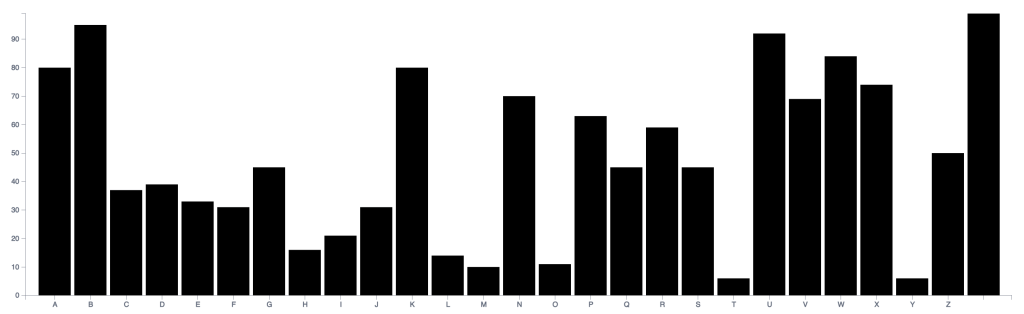
The above code is basically self-explanatory, try changing things and explore, and see below the chart we get.

Let’s look at our bar chart template code.

<div class="bar-chart" #chartContainer>
    <div class="bar-chart__main" id="bar">
        <svg></svg>
    </div>
</div>

And finally some styling…

.bar-chart {
    display: flex;
    flex-direction: column;
    width: 100%;
    height: 100%;

    &__main {
        flex: 1;
        position: relative;

        ::ng-deep svg {
            $lineColor: #6f7583;
            outline: none;

            .axis {
                path,
                line {
                    fill: none;
                    stroke: $lineColor;
                    stroke-width: 0.5;
                    shape-rendering: crispEdges;
                }

                text {
                    fill: #c3c3c3;
                    stroke: #c3c3c3;
                    stroke-width: 0.5;
                }
            }

            .chart-bar {
                outline: none;
                stroke: transparent !important;
                fill-opacity: 1 !important;
            }
        }
    }
}

Check out the complete Angular project code on GitHub repo.

Conclusion

d3.js is a powerful library but there is also a steep learning curve and you could easily get lost when trying to debug or find some solution. Best recommend approach is to go over the docs first and understand how things work under the hood.

Hope you like the post!.

In the next post I will be trying transitions (animations), responsiveness and tooltips for the bar chart, so be sure to check it out.

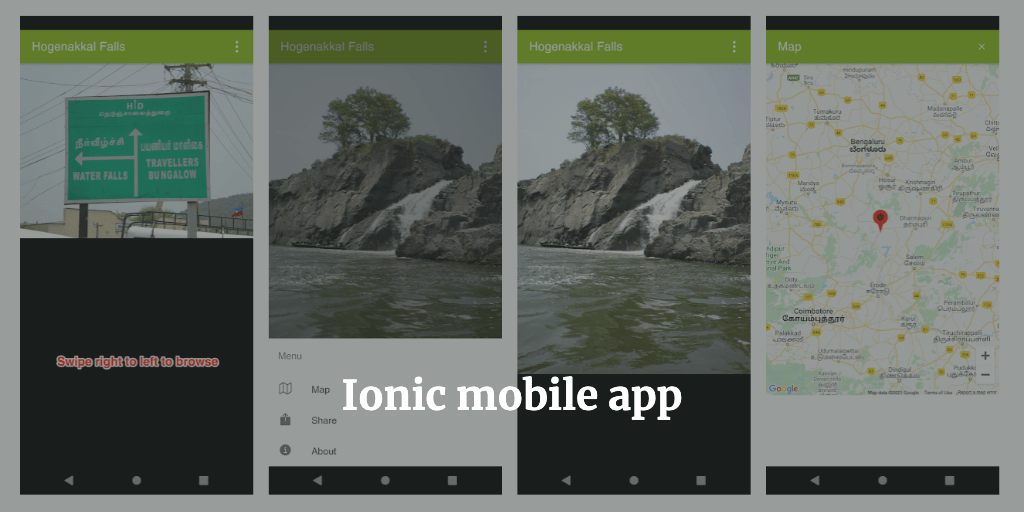
Developed mobile application using Ionic and Angular.

Ionic framework lets you develop mobile applications with single code base for multiple platforms. It basically lets us build mobile experiences with open web.

This is something very cool.

So, I took some time out and developed one Android mobile application.

App – https://play.google.com/store/apps/details?id=com.ninetyninet.hogenakkal_falls

Check it out and please let me know.

Github code at – https://github.com/kumargandhi/hogenakkal-falls

Features
  • Browse through exotic collection of photos.
  • Google maps integration, showing location on map.
  • Social sharing.
  • AdMob integration.

Using forkJoin in Angular to perform multiple HTTP requests but wait until all done.

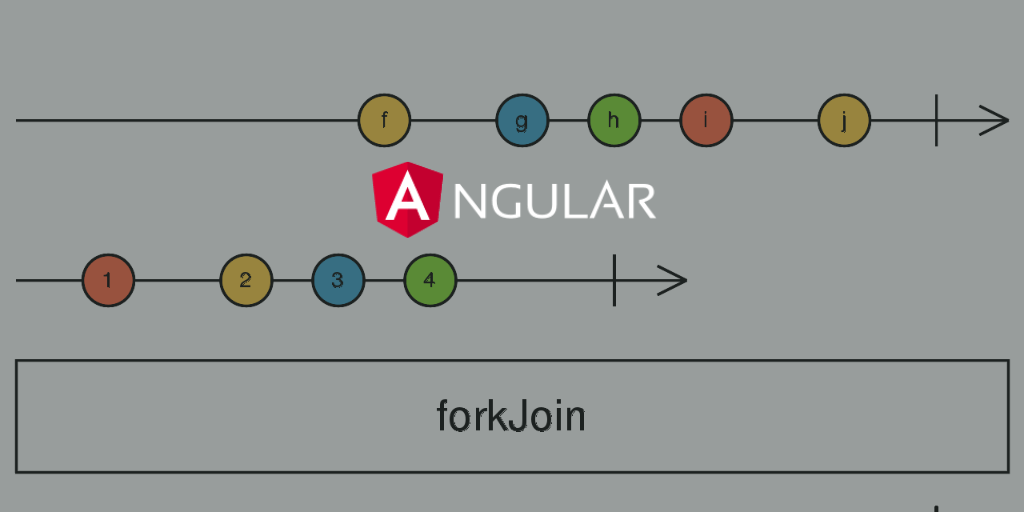
forkJoin is an operator in RxJS which takes one more observables as inputs and then wait until all observables to emit and complete.

One popular use case in Angular where we should use forkJoin is while performing multiple HTTP requests. There will be a use case where we would want to finish few HTTP requests in one go because the data fetched from one API call or HTTP request might be dependent on other API call data.

For example, say we are fetching all the users in an application, however we would also want to fetch all the user roles too so we can map the users data to the roles accordingly in the grid or make some decisions. So the solution for this is to use the forkJoin operator pass these two HTTP request as the inputs and wait for these two HTTP requests to complete, once done, we will have all the data we need in a single observable array so we can proceed to parse the data.

Lets, see some code example.

// Service class with two mock API functions to fetch the data.

import { Injectable } from '@angular/core';
import { Observable, of } from 'rxjs';
import { delay } from 'rxjs/operators';
import { IUser } from '../interfaces/user.interface';
import { MOCK_USER_ROLES, MOCK_USERS_DATA } from '../constants';

@Injectable({
    providedIn: 'root',
})
export class UserService {
    
    // Mock function to fetch the users data.
    getUsers(): Observable<IUser[]> {
        return of(MOCK_USERS_DATA).pipe(delay(2000));
    }

    // Mock function to fetch the user roles.
    getUserRoles(): Observable<string[]> {
        return of(MOCK_USER_ROLES).pipe(delay(2000));
    }
}
// Mock data for our service requests.

import { IUser } from './interfaces/user.interface';

// Mock users data
export const MOCK_USERS_DATA: IUser[] = [
    {
        id: '1',
        email: 'jackbing@gmail.com',
        roles: ['Student'],
        displayName: 'Jack Bing',
    },
    {
        id: '2',
        email: 'chandlerbing@gmail.com',
        roles: ['Super Admin'],
        displayName: 'Chandler Bing',
    },
    {
        id: '3',
        email: 'appAdmin@gmail.com',
        roles: ['Teacher'],
        displayName: 'Admin',
    },
];

// Mock user roles data
export const MOCK_USER_ROLES: string[] = ['Student', 'Super Admin', 'Teacher'];
// User interface, defines the type of our users data.

export interface IUser {
    id: string;
    email: string;
    password?: string;
    displayName: string;
    photoURL?: string;
    emailVerified?: boolean;
    roles: string[];
}
import { Component, OnInit } from '@angular/core';
import { UserService } from './services/user.service';
import { forkJoin } from 'rxjs';
import { IUser } from './interfaces/user.interface';

@Component({
    selector: 'app-root',
    templateUrl: './app.component.html',
    styleUrls: ['./app.component.scss']
})
export class AppComponent implements OnInit {
    users: IUser[] | undefined;

    userRoles: string[] | undefined;

    constructor(private _userService: UserService) {}

    ngOnInit() {
        this.getUsersData();
    }

    // We are using the forkJoin operator for the two requests from the service class.
    getUsersData() {
        forkJoin({
            users: this._userService.getUsers(),
            userRoles: this._userService.getUserRoles(),
        }).subscribe(
            ({ users, userRoles }) => {
                this.users = users;
                this.userRoles = userRoles;
            },
            (error) => {
                console.log(error);
            }
        );
    }
}

Above code sample function getUsersData is where we are using the forkJoin to make multiple HTTP requests and then we process the response from all the requests once all the requests are completed!!.

How TypeScript changed my life.

Don’t get me wrong, JavaScript is a powerful language. However, it is also a dynamic language.

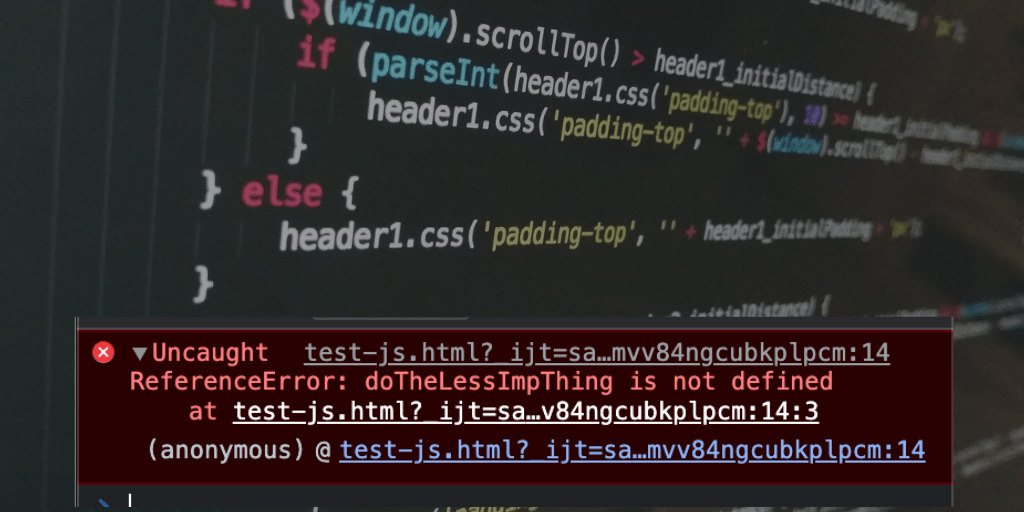
The problem with being dynamic language is you can do all kinds of crazy things, like, reference variables that don’t exist or work with objects of an unknown shape, since the code is executed by the browser if there are issues with your code you won’t be able to catch it until runtime when the browser throws an error and then your code / app is broken for good!!.

Runtime error and my app is broken!

Now, the whole point of TypeScript language is it prevents just that…prevents errors from ever happening by extending JavaScript with types. Hence the language is a super-set of JavaScript which means you can write plain JavaScript with all of its features completely optional.

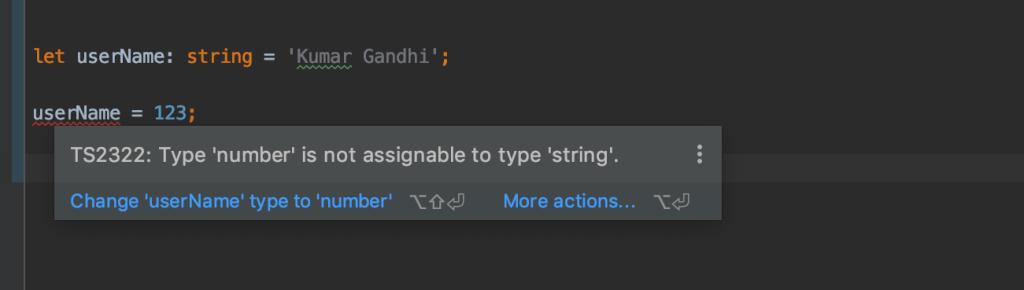
IDE’s have become smarter now that they provide instant feedback when writing code because TypeScript behaves like a compiled language where as JavaScript is the compilation target.

Feedback by IDE

For example, IDE will provide feedback about using a variable that does not exist and we can fix this issue then and there instead of fixing this issue weeks or months later when a hardworking QA engineer finds it. And we could have saved lot of time and money, also most importantly not find yourself in an embarrassing situation.

So, TypeScript, the primary goal of this language is to enable static typing, one way to achieve that is by allowing you to annotate your code with types.

let userName: string = 'Kumar Gandhi';
// Also known as explicit type since we set the type. 

In above code sample you can see strongly typed variable using a colon followed by a type.

There are other types we can set, like, number, boolean …This is called explicit type. So if we try to assign a value of wrong type then we get an error. Alternatively, we can also set initial value and it will implicitly assign type, see below code.

let userName = 'Kumar Gandhi';
// Type is implicitly set to string since the value is of type string.

You can also opt-out of type when you annotate with the any type which allows you to loosely type or opt-out of type checking.

let userName: any;
// Opt-out of type check and type can change dynamically.

You can also define your own custom types and interfaces which is extremely powerful when working with objects.

// Custom type using interface
export interface User {
    id: string;
    email: string;
    displayName: string;
    photoURL?: string;
}

// My variable with custom type
let currentUser: User;

Above User interface defines various types of the properties on an object. We can then apply this interface to the plain JavaScript object, the currentUser object.

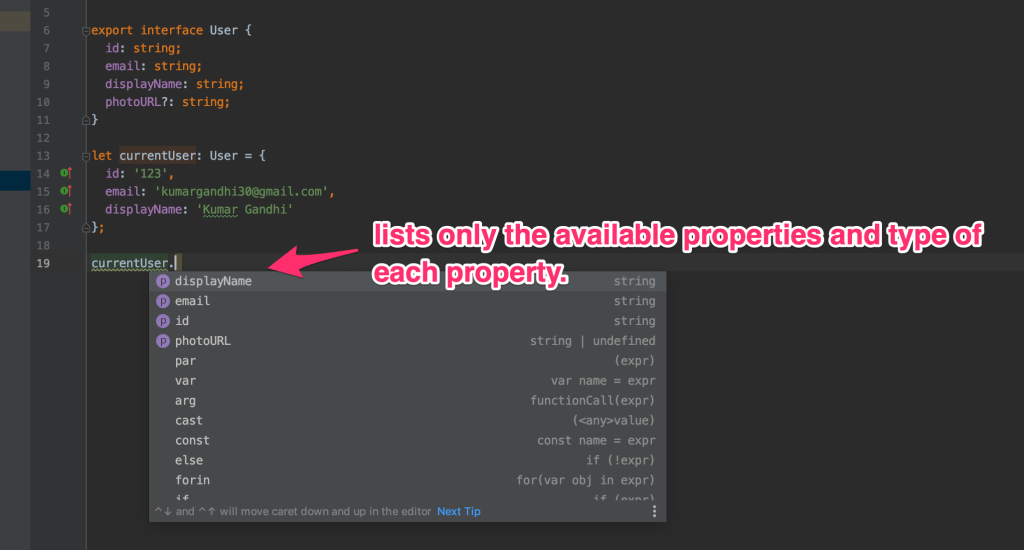
The beauty of having this strongly typed code is that we get auto-complete everywhere in our IDE and we don’t have to jump back and forth through documentation or traces to figure our why our code is not working!!.

Auto-complete by IDE
Working with TypeScript project
  • Project will will have a tsconfig.json file which provides ways to customise the behaviour of the compiler.
  • Run the TypeScript compiler using the tsc command it will take the .ts file and transpile it into vanilla JavaScript.
  • You may also choose which version of JavaScript you want to in the compiler settings if you are targeting some older browser.
  • This means you can start using the latest features of JavaScript without having to worry if they will be supported in an older environment.
Conclusion

Use DocumentReference to add a document to a collection in Angular + Firebase.

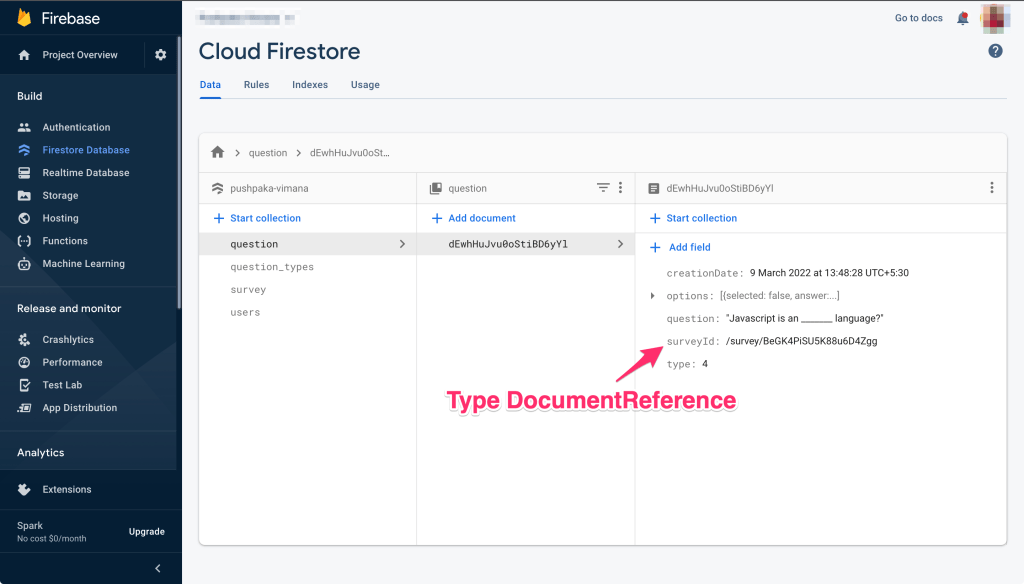
As per the docs A DocumentReference refers to a document location in a Firestore database [READ]. In simple terms, it creates a relation between two collections. Let’s look at Firestore Database with the actual reference.

question collection on Firebase Database

From the above screenshot, every document in question collection actually refers to a document in survey collection. That is the relation between those two collections. And once we have established such a reference there are lot more things we can do with it, like, apply a filter query on question collection!!.

In Angular application when you create the interface or class for above question collection you can set the type of the property surveyId as DocumentReference. See below code sample.

import { DocumentReference } from '@angular/fire/compat/firestore/interfaces';

export interface IQuestion {
    id?: string | number;
    type: string;
    question: string;
    options?: string | number | IOption | IOption[];
    surveyId?: DocumentReference;
    creationDate?: Date;
}

export interface IOption {
    selected: boolean;
    answer: string;
}

Okay, so, we have defined the type and collection, now, how do you add a document to the collection in Angular. See below code sample.

saveQuestion(question: IQuestion, surveyId: string) {
    const surveyDoc = this.firestore
        .collection(COLLECTION_SURVEY)
        .doc(surveyId);
    question.surveyId = surveyDoc.ref;
    return this.firestore.collection(COLLECTION_QUESTION).add(question);
}

Now to get the questions belonging to a survey you can write a simple query function. See below code sample.

getQuestionsForSurvey(surveyId: string) {
    const surveyDoc = this.firestore
        .collection(COLLECTION_SURVEY)
        .doc(surveyId);
    return this.firestore
        .collection(COLLECTION_QUESTION, (ref) =>
            ref.where('surveyId', '==', surveyDoc.ref)
        )
        .snapshotChanges();
}

Please leave a comment if there is something more you would want me to share.

Versions
  • @angular/cli@~12.2.6
  • @angular/fire@^7.1.1

**Soon I will share the complete code on Github.

Learning CRUD operations in Angular + Firebase

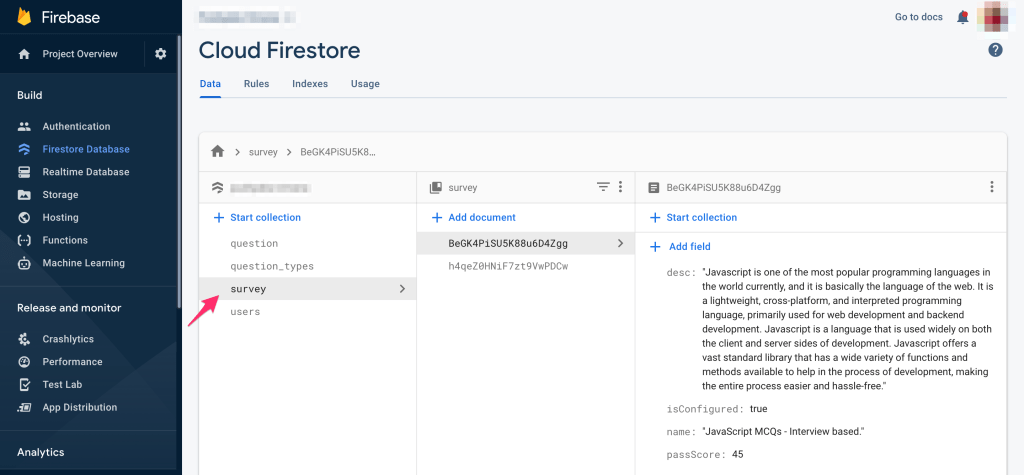
Let’s say we have a collection in our Firebase Database called survey and we want to perform the CRUD operations to manipulate this collection.

survey collection on Firebase Database

But, before we go there, first let’s look at the type of data the collection holds.

export interface ISurvey {
    id?: string;
    name: string;
    desc: string;
    isConfigured: boolean;
    passScore: number;
}

Above is the survey interface in Angular which we are going to use as the type or document of surveys for our collection.

Create
saveSurvey(survey: ISurvey) {
    return this.firestore.collection(COLLECTION_SURVEY).add(survey);
}

We are adding a new survey to the collection.

Read
getSurveys() {
    return this.firestore.collection(COLLECTION_SURVEY).snapshotChanges();
}

Get the documents in the collection. The function actually returns an Observable, so to get the actual payload we need to subscribe to the function and parse the data to the needed type, see below.

surveys: ISurvey[];

getSurveys().subscribe(
    (data) => {
        this.surveys = data.map((e) => {
            const s: ISurvey = e.payload.doc.data() as ISurvey;
            s.id = e.payload.doc.id;
            return s;
        });
        this.loading = false;
        this._cd.markForCheck();
    },
    (error) => {
        this.errorText = error;
        this.loading = false;
        this._cd.markForCheck();
    }
);
Update
updateSurvey(survey: ISurvey) {
    const id = survey.id;
    delete survey.id;
    return this.firestore.doc(`${COLLECTION_SURVEY}/` + id).update(survey);
 }
Delete
deleteSurvey(surveyId) {
    return this.firestore.doc(`${COLLECTION_SURVEY}/` + surveyId).delete();
}

All the above functions except getSurveys returns a promise, so you would use then() and catch() blocks to process the response. For example, say after deleting a survey we need to refresh the data. The we can do this on the then() block of the promise returned by the deleteSurvey method, see below for sample code.

this.deleteSurvey(survey.id)
    .then(() => {
      this.loading = false;
      this.getSurveys();
    })
    .catch((error) => {
      this.loading = false;
      this.errorText = error;
    }
);
Versions
  • @angular/cli@~12.2.6
  • @angular/fire@^7.1.1

**Soon I will share the complete code on Github.

Create a simple name validator function in Angular

In any Angular application working with validators is a trivial part of the development process. You might need to write a validator function for a form control which can vary from simple validation, like, check if username is valid or not, to more complex validations, like, check if entered ip address is of ipv4 or ipv6!!.

In this blog post I will show you how to get started by writing one simple userName validator function and assign this validator function to your form control in the form group and yes we will use reactive forms.

First let’s create the validator function.

import { AbstractControl } from '@angular/forms';

export function validateName(fieldName = 'name', displayName = 'Name') {
    return (control: AbstractControl) => {
        const value = control.value;
        if (value == null) {
            return null;
        }
        if (value.length < 1) {
            return { [fieldName]: `${displayName} is required` };
        }
        if (!isValidName(value)) {
            return { [fieldName]: `You must enter a valid ${displayName}` };
        }
        return null;
    };
}

export function isValidName(value: string) {
    const pattern = /^[a-zA-Z\d_.]*$/;
    return pattern.exec(value) !== null;
}

Above validator function validates if the entered value is valid or not by using a RegExp to test the entered value. We allow only string values and also allow only two special chars, i.e, _ (underscore) and . (dot). And also, as you can see above validator function returns the error messages that we want to display on the template below the userName form control. Isn’t this nice?.

Now let’s create the form control and assign above validator function.

this.form = this._fb.group({
     userName: ['', validateName('userName', 'Username')]
});

If you look at above code closely, you can see we are using the form builder service to generate the form control.

Lastly lets look at our form and form control in the template.

<form
    class="row g-3"
    novalidate
    [formGroup]="form"
    [class.was-validated]="isFormSubmitted"
    (ngSubmit)="onFormSubmit($event)"
>
    <div class="col-md-4">
        <label for="userName" class="form-label">First name</label>
        <input
            type="text"
            class="form-control"
            id="userName"
            formControlName="userName"
            required
            [ngClass]="{
                'is-invalid':
                    isFormSubmitted && form.controls['userName'].errors
            }"
        />
        <div
            class="invalid-feedback"
            *ngIf="form.controls['userName'].hasError('userName')"
        >
            {{ form.controls['userName'].errors?.userName }}
        </div>
    </div>
</form>

I think this is it. We have created a simple userName validator.

Checkout the Github repo for more code samples.

Export table PDF in Angular with JSPDF.

In this post we have seen how to install the jspdf library in an Angular project and export a simple PDF.

Here we will see how we can create a table (with table like data) with jspdf APIs with real data and export to PDF.

Lets say we want to export below table data in UI to PDF.

Table

And the data for above table is maybe fetched from API call or computed in UI, but lets say we have the data, like, below in an array variable.

monthlyPayments = [
   {
      "Month":"1",
      "Interest":"3,666.67",
      "Principal":"7,829.36",
      "Balance":"792,170.64"
   },
   {
      "Month":"2",
      "Interest":"3,630.78",
      "Principal":"7,865.25",
      "Balance":"784,305.39"
   },
   {
      "Month":"3",
      "Interest":"3,594.73",
      "Principal":"7,901.3",
      "Balance":"776,404.09"
   },
   {
      "Month":"4",
      "Interest":"3,558.52",
      "Principal":"7,937.51",
      "Balance":"768,466.58"
   },
   {
      "Month":"5",
      "Interest":"3,522.14",
      "Principal":"7,973.89",
      "Balance":"760,492.69"
   },
   {
      "Month":"6",
      "Interest":"3,485.59",
      "Principal":"8,010.44",
      "Balance":"752,482.25"
   },
   {
      "Month":"7",
      "Interest":"3,448.88",
      "Principal":"8,047.15",
      "Balance":"744,435.1"
   },
   {
      "Month":"8",
      "Interest":"3,411.99",
      "Principal":"8,084.04",
      "Balance":"736,351.06"
   },
   {
      "Month":"9",
      "Interest":"3,374.94",
      "Principal":"8,121.09",
      "Balance":"728,229.97"
   },
   {
      "Month":"10",
      "Interest":"3,337.72",
      "Principal":"8,158.31",
      "Balance":"720,071.66"
   }
   ...
]

Now lets use the table function from jspdf library and also use above table data to create the PDF and export it.

exportToPDF() {
        // Creating a unique file name for my PDF
        const fileName = 'table.pdf';
        const doc = new jsPDF();
        doc.setFont('helvetica', 'normal');
        doc.setFontSize(14);
        doc.table(
            10,
            95,
            this.monthlyPayments,
            this._createHeadersForPdfTable([
                'Month',
                'Interest',
                'Principal',
                'Balance',
            ]),
            { autoSize: false }
        );
        doc.save(fileName);
    }

When we call above function we should see the pdf exported with our sample table data.

And the function _createHeadersForPdfTable is a simple utility function used to create the headers for our table. See below.

private _createHeadersForPdfTable(keys: string[]) {
        const result: CellConfig[] = [];
        for (let i = 0; i < keys.length; i += 1) {
            result.push({
                name: keys[i],
                prompt: keys[i],
                width: 55,
                align: 'center',
                padding: 10,
            });
        }
        return result;
    }

Note: If you have observed the table data, all the numbers in the array variable monthlyPayments are all converted to strings, this was done intentionally. For some reason only strings are working. Might be a bug in jspdf!!.

Conclusion
  • We have see sample table data that we wanted to export to PDF.
  • We have used the table method from jspdf library to create the PDF.
  • We have successfully exported our table data to PDF.

Checkout complete code on Github.
Using FormArray in Angular with example.

In this blog post we will try to understand how a FormArray works. In simple words FormArray is simply a collection of form controls grouped together. So if a control in the FormArray is invalid then entire array is invalid. And a form control in the array can be FormControl or FormGroup.

In order to understand FormArray we should first understand FormGroup and FormControl. So, I would suggest reading about these.

Let’s get right into the post.

Assume we have a requirement to create a form like below.

Question and options

This is a question and answer type of form. And answer is actually multiple radio buttons selection. So, we have two type of controls:

  1. Input text element for question and answers.
  2. Radio buttons for selecting the correct option in our answers.

First, lets start by creating or building our form model form, like below.

this.form = this._fb.group({
            question: ['', Validators.required],
            options: this._fb.array([]),
        });

Above form group has one field / control called question for our Question input and another field / control options for our options or answers defined as a form array (this._fb.array([])). **If you’ve noticed we are working with reactive-forms which is the best way to work with dynamic controls.

An array usually comes with few methods through which we can manipulate our array. Same for FormArray too, it has few methods. Like, push to add new controls to form array.

Now lets look at some code where we can add controls to our form array options field defined above.

const options = this.form.get('options') as FormArray;
const option = new FormGroup({
      selected: new FormControl(),
      answer: new FormControl('', [Validators.required]),
});
options.push(option);

In above code sample we are creating a new form group with two controls {selected, answer} for each of our option and adding them to ours options form array. So, selected form control is actually a radio button for user to select the correct answer and answer is input text element to display the answer. Finally using push method to add our new form control to the form array. Likewise, we can add multiple options to our form array and create the options like in the screenshot.

Now we have created our form with the needed controls in them.

Lets look at another scenario. Say, we get our question data from API call and we want to populate our form with this data, for this we could write a simple function like below.

setDefault(data = DEFAULT_DATA) {
    const { question, options } = this.form.controls;
    question.setValue(data.question);
    const selectedOption = (this.selectedOption = data.answer);
    this.isOptionSelected = true;
    (options as FormArray).clear();
    data.options.forEach((item) => {
       const option = new FormGroup({
            selected: new FormControl(),
            answer: new FormControl(item, [Validators.required]),
        });
        (options as FormArray).push(option);
    });
    (options as FormArray).controls[selectedOption]
        .get('selected')
        ?.setValue('selected' + selectedOption);
}

Take a minute to debug above code. In above code line no. 14-16 shows you how we are selecting the correct radio button answer in the array of options.

And our data from API call is like below.

const DEFAULT_DATA = {
    question:
        'Which of the following numbers is farthest from the number 1 on the number line?',
    options: ['0', '-5', '-10', '5', '10'],
    answer: 2,
};

Lastly lets look at our form template.

<form
    class="needs-validation data-container question-answer-form"
    [formGroup]="form"
>
    <div class="row pb-3">
        <div class="col-md-1 text-end">Question:</div>
        <div class="col-md-11">
            <input
                type="text"
                class="form-control"
                id="question"
                placeholder="Enter question"
                formControlName="question"
                [ngClass]="{
                    'is-invalid':
                        isFormSubmitted && form.controls['question'].errors
                }"
                required
            />
            <div
                class="invalid-feedback"
                *ngIf="form.controls['question'].errors?.required"
            >
                Question cannot be empty
            </div>
        </div>
    </div>
    <h6
        class="fw-bold"
        *ngIf="optionsFormArray && optionsFormArray.controls.length > 0"
    >
        Options
    </h6>
    <div
        class="row pb-3"
        formArrayName="options"
        *ngFor="let option of optionsFormArray.controls; let i = index"
    >
        <ng-container [formGroupName]="i">
            <div class="col-md-1 text-end">{{ i + 1 }})</div>
            <div class="col-md-8">
                <div class="row">
                    <div class="col-md-2 radio-clm">
                        <input
                            class="form-check-input"
                            type="radio"
                            id="selected{{ i }}"
                            value="selected{{ i }}"
                            formControlName="selected"
                            name="selected"
                            (click)="optionClicked(i)"
                        />
                    </div>
                    <div class="col-md-10">
                        <input
                            type="text"
                            class="form-control"
                            formControlName="answer"
                            maxlength="255"
                            placeholder="Enter option text"
                        />
                        <div
                            *ngIf="
                                getOptionsFormGroup(i).controls['answer']
                                    .touched &&
                                !getOptionsFormGroup(i).controls['answer'].valid
                            "
                            class="row text-danger mb-3"
                        >
                            <div
                                class="col-md-12"
                                *ngIf="
                                    getOptionsFormGroup(i).controls['answer']
                                        .errors?.required
                                "
                            >
                                Option is required
                            </div>
                        </div>
                    </div>
                </div>
            </div>
        </ng-container>
    </div>
</form>

In the above template we can see we have initialised our form [formGroup]=”form” and defined our form controls by using the directive formControlName. We are also creating our controls in the form array dynamically by looping through it *ngFor=”let option of optionsFormArray.controls; let i = index” and define our form group [formGroupName]=”i” and again define controls in them.

That’s it, we have worked with Form and FormArray now!!.

Form and FormArray in action.

This is just a initial step towards creating more intuitive and complex forms in Angular. For example, there are still lot more methods in FormArray we can use, like to name a few:

  1. To remove all controls we can use method clear().
  2. To remove a control at a given index we can use method removeAt({}).
  3. Method insert({}) to add a control at a given index.

Checkout Github repo for complete code and also to see it in action.