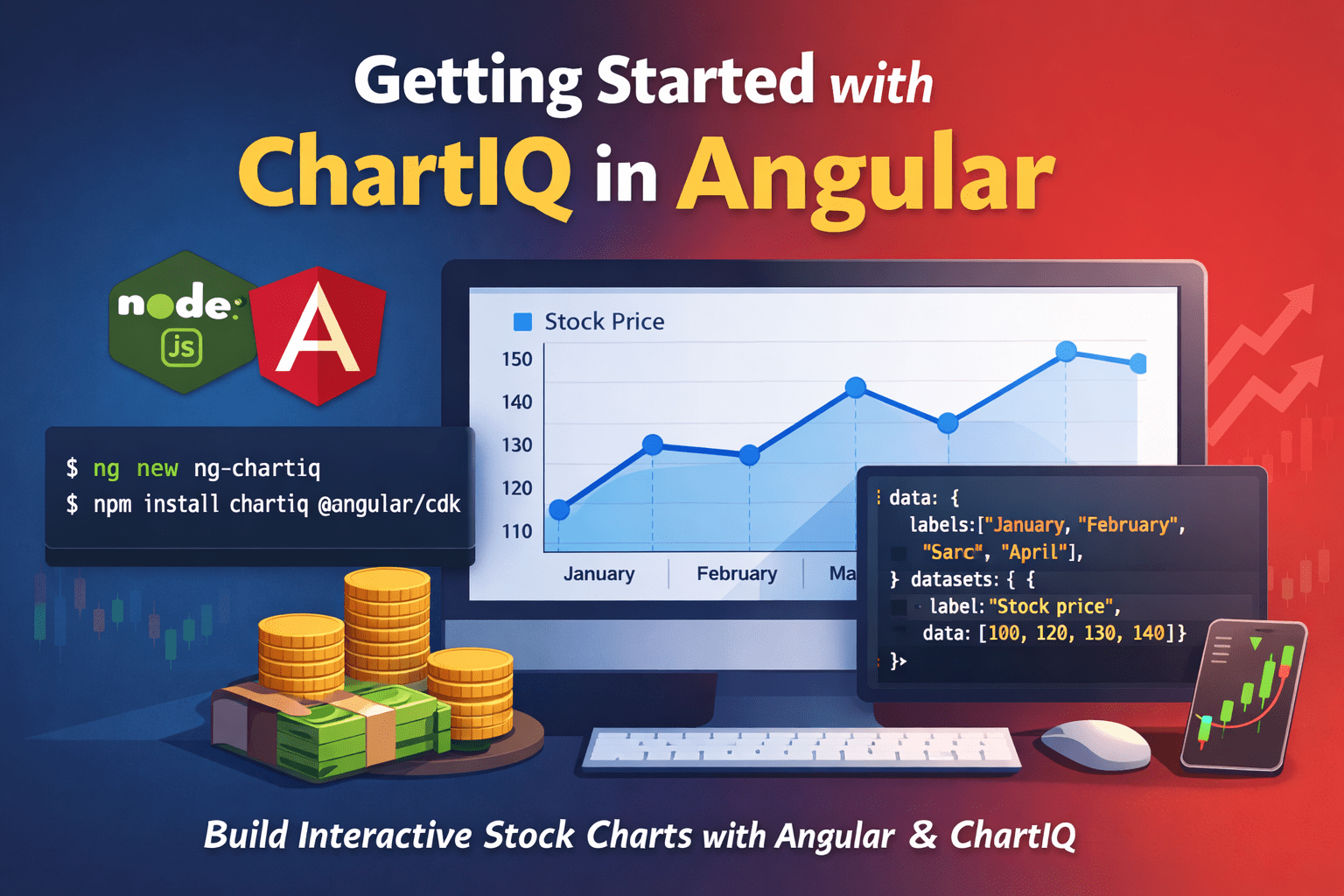
From 100KG (Kilograms) to a Healthier Me: My 25KG Weight Loss Journey

Over the past few months, people have started noticing the changes and often ask me, “What’s the secret?” Well, here it is!

Almost 15 months ago, I was at 100KG (Kilograms), feeling sluggish and unhealthy. I knew I had to make a change, not just to look better but to feel better. Today, I’m 25KG lighter (that’s about 55 pounds!), and the difference is life-changing!

What Worked for Me:

  • Eating When Hungry – Instead of following strict meal schedules, I simply listened to my body and avoided unnecessary eating.-
  • No Junk Food – Cutting out processed and unhealthy foods made a huge impact.
  • Balanced Approach – I stayed disciplined on weekdays but ate well over the weekends, ensuring I enjoyed my meals without overindulging.
  • Minimal Exercise – I wasn’t hitting the gym daily, but I did go a few times a month. My results came mostly from better eating habits.
  • Understanding the Science – The TED Talk “The Mathematics of Weight Loss” helped me grasp how weight loss really works.

The Impact:

  • More energy and better focus
  • Improved sleep and overall well-being
  • A renewed sense of confidence and positivity

This journey wasn’t about extreme diets or intense workouts, it was about making sustainable, long-term changes. If you’re thinking about starting your own journey, remember: small changes lead to big results!

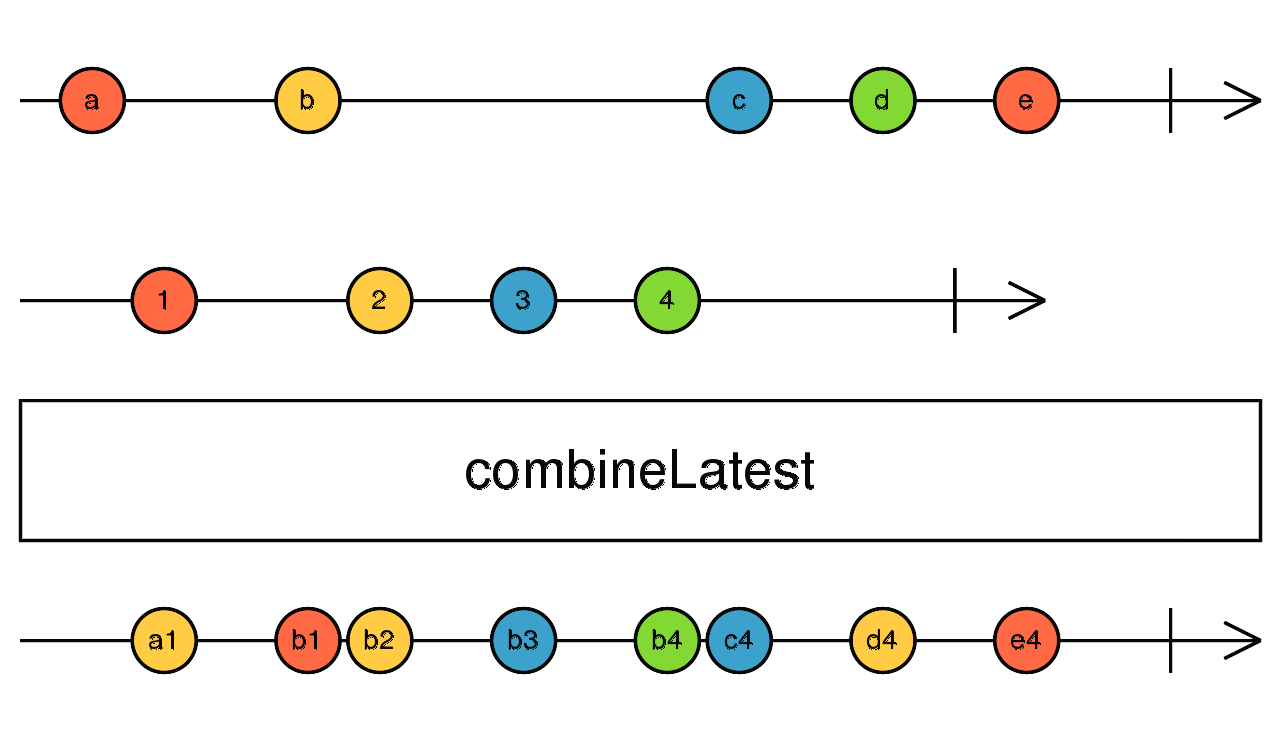
Using combineLatest in Angular to perform multiple HTTP requests but don’t wait until all done.

In a previous post we have seen how the forkJoin operator is used to group multiple http requests (basically group observables) and take action only when all the requests have returned, i.e, we are waiting until all the http calls are finished.

But, what if we do not want to wait until all are done?, we only need to wait until atleast one http request has completed, in other words, emit value every time any of the source Observables emit after they’ve emitted at least once.

This scenario makes sense when we know certain http requests might take longer time than others, but still take actions based on other returned responses. For this use-case we use combineLatest.

Let’s look at an example to illustrate how combineLatest can be used in this scenario.

import { HttpClient } from '@angular/common/http';
import { Component, OnInit } from '@angular/core';
import { combineLatest } from 'rxjs';

@Component({
  selector: 'app-example',
  template: `
    <div>
      <p>Data 1: {{ data1 }}</p>
      <p>Data 2: {{ data2 }}</p>
      <p>Data 3: {{ data3 }}</p>
    </div>
  `
})
export class ExampleComponent implements OnInit {
  data1: any;
  data2: any;
  data3: any;

  constructor(private http: HttpClient) {}

  ngOnInit() {
    const request1 = this.http.get('https://api.example.com/data1');
    const request2 = this.http.get('https://api.example.com/data2');
    const request3 = this.http.get('https://api.example.com/data3');

    // Using combineLatest to emit when any request returns a value after all have emitted at least once
    combineLatest([request1, request2, request3]).subscribe(
      ([res1, res2, res3]) => {
        // Update the component with new data whenever any observable emits after initial emission
        this.data1 = res1;
        this.data2 = res2;
        this.data3 = res3;

        // You can also implement logic to handle responses individually here
        console.log('Responses received:', res1, res2, res3);
      }
    );
  }
}

Key points:

  • combineLatest emits a new value whenever any of the source observables emit after all previous observables have emitted at least once.
  • This makes it suitable for scenarios where you want to react to each individual HTTP response as it arrives, without waiting for all to complete.
  • Keep in mind, combineLatest requires all source observables to emit at least once before starting to emit combined values.

When to use combineLatest?

  • When responses are independent and you want to process each as they arrive.
  • When the order of responses doesn’t strictly matter.
  • When some requests might take longer, but you want to update the UI or perform actions based on any response as soon as it arrives.

Summary

In situations where you need real-time updates or partial data from multiple HTTP requests, combineLatest is a powerful operator. Unlike forkJoin, which waits for all observables to complete, combineLatest provides a continuous stream of combined data, making your application more responsive.

Understanding the Basics of TypeScript: A Guide for JavaScript Developers

JavaScript has long been the language of the web, powering everything from simple animations to complex web applications. However, as applications grow in complexity, JavaScript’s dynamic nature can sometimes become a challenge. That’s where TypeScript comes in—a statically typed superset of JavaScript that offers improved tooling, better error checking, and scalable development.

In this guide, we’ll walk through the basics of TypeScript, tailored specifically for JavaScript developers looking to level up.

🔹 What is TypeScript?

TypeScript is an open-source programming language developed by Microsoft. It builds on JavaScript by adding static type definitions. TypeScript code is eventually compiled down to plain JavaScript, making it compatible with any JavaScript environment.

🔹 Why Use TypeScript?

If you’re comfortable with JavaScript, you might wonder why you should bother with TypeScript. Here are a few compelling reasons:

  • Static Typing: Catch type-related errors at compile time.
  • Better IDE Support: Enjoy features like auto-completion, type inference, and inline documentation.
  • Improved Readability & Maintainability: Explicit types make your code easier to understand.
  • Scalability: Ideal for large projects and teams.

🔹 Getting Started with TypeScript

1. Installation

npm install -g typescript

To compile a .ts file to JavaScript:

tsc filename.ts

2. Basic Types

let isActive: boolean = true;
let count: number = 42;
let userName: string = "John";
let ids: number[] = [1, 2, 3];
let anyValue: any = "Could be anything";

3. Functions with Types

function greet(name: string): string {
  return `Hello, ${name}`;
}

Optional and default parameters:

function greet(name: string = "Guest"): string {
  return `Hello, ${name}`;
}

4. Interfaces

interface User {
  id: number;
  name: string;
}

let user: User = {
  id: 1,
  name: "Alice"
};

5. Classes and Inheritance

class Animal {
  constructor(public name: string) {}

  speak(): void {
    console.log(`${this.name} makes a sound.`);
  }
}

class Dog extends Animal {
  speak(): void {
    console.log(`${this.name} barks.`);
  }
}

🔹 TypeScript vs JavaScript: Key Differences

Feature JavaScript TypeScript
Typing Dynamic Static (optional)
Compile-time Checks No Yes
Interfaces No Yes
Tooling Basic Advanced

🔹 Tips for JavaScript Developers Transitioning to TypeScript

  • Start Small: Begin by adding TypeScript to just one file in your project.
  • Use tsc --init: To create a tsconfig.json and configure your project.
  • Gradually Add Types: Use the any type as a temporary fallback and slowly introduce strict typing.
  • Use DefinitelyTyped: For type definitions of popular JavaScript libraries (@types/library-name).

🔹 Final Thoughts

TypeScript doesn’t replace JavaScript—it enhances it. By introducing types and better tooling, TypeScript helps developers write more predictable, maintainable, and robust code. For JavaScript developers, learning TypeScript is a natural next step that can significantly boost your productivity and code quality.

📌 Ready to Dive In?

If you haven’t tried TypeScript yet, now is a great time to start. The learning curve is gentle, especially with your JavaScript background, and the benefits become obvious quickly as your projects scale.

🌐 Useful External Resources

For more in-depth information, check out these trusted resources:

Top JavaScript Libraries and Frameworks for Web Development in 2025

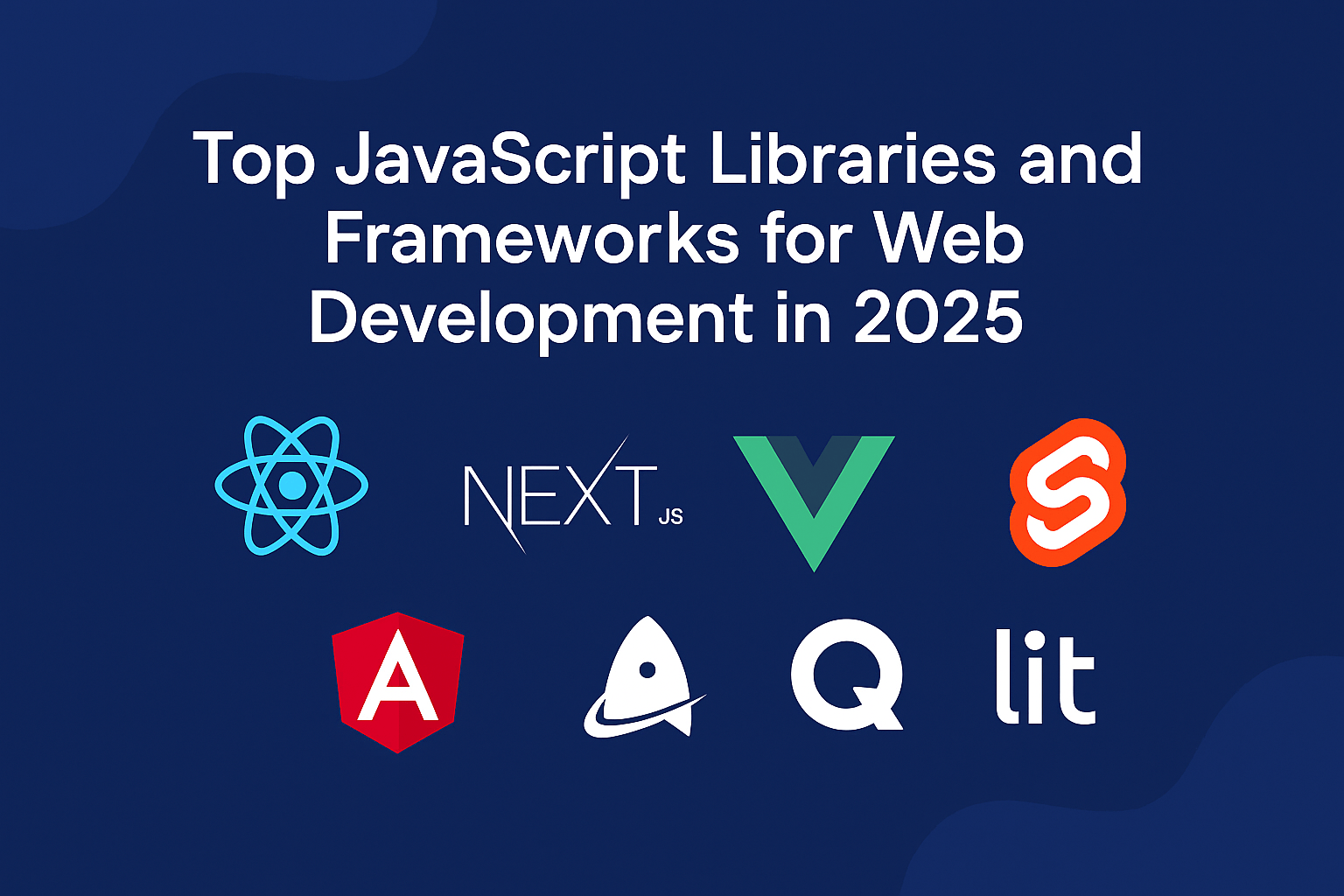
Web development continues to evolve rapidly, and JavaScript remains at the heart of building modern, responsive, and feature-rich applications. As we move into 2025, the JavaScript ecosystem offers more powerful tools than ever—ranging from libraries for UI components to full-stack frameworks for scalable applications.

In this post, we explore the top JavaScript libraries and frameworks leading the way in 2025 to help developers choose the best fit for their next web project.


🔥 1. React (Meta)

Why it’s still a top choice:

  • Component-based architecture and vast ecosystem
  • Powerful new features like React Server Components and concurrent rendering
  • Backed by Meta and supported by a large developer community

Use case: SPAs, PWAs, dashboards, and enterprise applications

🚀 2. Next.js (Vercel)

Why it’s essential in 2025:

  • Full-stack React framework with SSR, SSG, and API routes
  • Edge-ready with React Server Components and AI integration

Use case: SEO-friendly websites, e-commerce, and SaaS platforms

🌱 3. Vue.js 3 & Nuxt 3

Why Vue continues to rise:

  • Vue 3’s Composition API makes large apps easier to scale
  • Simple learning curve and great documentation
  • Nuxt 3 supports SSR, static generation, and full-stack capabilities

Use case: Admin panels, PWAs, and mid-size apps

⚡ 4. Svelte & SvelteKit

Why it stands out in 2025:

  • Compiles code at build time, resulting in smaller bundles
  • SvelteKit provides routing, SSR, and API handling out-of-the-box

Use case: Lightweight apps, startup MVPs, and interactive dashboards

🌐 5. Astro

The new favorite for content-driven sites:

  • “Islands architecture” loads JavaScript only when needed
  • Supports multiple frameworks like React, Vue, Svelte in one project

Use case: Blogs, docs, and marketing websites

🛠️ 6. Angular (Google)

Why Angular is still relevant:

  • All-in-one solution with built-in routing, forms, and state management
  • Improved performance and developer experience in Angular 17+

Use case: Large-scale enterprise apps and complex admin dashboards

⚙️ 7. Qwik

The performance powerhouse:

  • Uses “resumability” to achieve near-instant loading
  • Ideal for sites targeting excellent Core Web Vitals scores

Use case: High-performance sites, e-commerce, and SEO-critical apps

🧩 8. Lit (Web Components)

Embracing the Web Components standard:

  • Builds fast, standard-based UI components with minimal code
  • Great for design systems and reusable component libraries

Use case: Micro frontends, design systems, and cross-framework projects

📊 Honorable Mentions

  • Remix: Full-stack React framework with a focus on user experience
  • SolidJS: Fast, fine-grained reactive framework with a React-like syntax
  • Turso: Edge-first SQL database with JS SDK (not a framework but a growing trend)

🧠 Choosing the Right Tool

The ideal framework depends on your project needs:

  • SEO-focused: Next.js, Astro, or Qwik
  • Simplicity & performance: Svelte or SolidJS
  • Enterprise apps: Angular or React
  • Modern architecture: Qwik, Astro, or Remix

🚀 Final Thoughts

JavaScript frameworks are evolving faster than ever, and 2025 is full of promising tools for every kind of web project. Whether you’re building at the edge, optimizing for SEO, or scaling an enterprise-grade app, there’s a JavaScript solution that fits your needs.

Stay curious, experiment boldly, and keep coding! 💻✨

Create HTTP Observable from Fetch in Angular

Angular is a popular front-end framework for building web applications. One of the essential aspects of web development is making HTTP requests to fetch data from a server or send data to it. Angular provides a powerful HttpClient module for this purpose, but you can also use the Fetch API to create HTTP observables. In this blog post, we will explore how to create HTTP observables from the Fetch API in Angular.

Understanding HTTP Observables

Before we dive into the details of creating HTTP observables from the Fetch API, let’s briefly understand what HTTP observables are. In Angular, HTTP observables are used to manage asynchronous HTTP requests. They are a crucial part of modern web development, as they allow us to work with data from APIs, servers, or other sources asynchronously.

Angular provides an HttpClient module that simplifies making HTTP requests. However, the Fetch API is another way to perform HTTP requests in a more low-level manner.

Using the Fetch API

The Fetch API is a modern web API for making network requests. It provides a cleaner and more modern alternative to the older XMLHttpRequest. To use the Fetch API in Angular, follow these steps:

Step 1: Import the Required Modules

First, you need to import the Observable class and other necessary modules. In your Angular component, include the following imports:

import { Observable, from } from 'rxjs';
import { map } from 'rxjs/operators';

Step 2: Create an HTTP Observable with Fetch

Now, you can create an HTTP Observable using the Fetch API. Here’s an example of how to fetch data from an API and convert it into an Observable:

const url = 'https://api.example.com/data';

const fetchData = () => {
  return from(fetch(url))
    .pipe(
      map(response => {
        if (!response.ok) {
          throw new Error('Network response was not ok');
        }
        return response.json();
      })
    );
};

const dataObservable: Observable<any> = fetchData();

In this code, we use the fetch function to make an HTTP request and then use the from operator from RxJS to convert the Promise returned by fetch into an Observable. We also use the map operator to handle the response and convert it to JSON.

Step 3: Subscribe and Handle the Data

To consume the data from the created Observable, you can subscribe to it in your Angular component:

dataObservable.subscribe(data => {
  console.log('Received data:', data);
}, error => {
  console.error('An error occurred:', error);
});

This code subscribes to the dataObservable and logs the received data or any errors that occur during the HTTP request.

Create Http Observables

Now, that we understand how to use Fetch API with observables. Let’s create a utility (re-usable) function which creates Http Observables when needed.

import { Observable } from 'rxjs';

// Below function makes use of create method to create an Observable
export function createHttpObservable(url: string): Observable<any> {
    return  Observable.create(observer => {

      // AbortController for cancelling our subscriptions when needed.
      const controller = new AbortController();
      const signal = controller.signal;

      fetch(url, {signal})
        .then(response => {
          return response.json();
        })
        .then(body => {
          observer.next(body);
          observer.complete();
        })
        .catch(err => {
          observer.error(err);
        });

        return () => controller.abort();
    });
  }

Use the utility function like below:

this.myData$ = createHttpObservable('api/dataItems');
Benefits of Using Fetch with Observables

Using the Fetch API with Observables in Angular offers several advantages:

  • Flexibility: The Fetch API provides a simple and flexible way to make HTTP requests, allowing you to customize the request headers and other options.
  • Observables: By converting the Fetch API’s Promise into an Observable, you can leverage RxJS operators to work with the asynchronous data flow effectively.
  • Error Handling: You can easily handle errors using RxJS operators like catchError, making your code more robust.
  • Interoperability: Fetch works well with other web APIs and libraries, so you can integrate it with various third-party services seamlessly.
Conclusion

While Angular’s HttpClient module is a powerful tool for making HTTP requests, the Fetch API offers an alternative approach for those who prefer a more low-level control over their requests. By converting Fetch API responses into HTTP observables, you can leverage the power of RxJS operators for efficient data handling in your Angular applications.

Remember that the choice between HttpClient and Fetch API depends on your specific use case and requirements. Both are valid options, and you should choose the one that best fits your project’s needs.

Happy coding!

Understanding RxJS Operators: concatMap, mergeMap, and exhaustMap

RxJS, or Reactive Extensions for JavaScript, is a powerful library for working with asynchronous data streams in JavaScript. It provides a wide range of operators that enable developers to manage and manipulate data flows effectively. Among these operators, concatMap, mergeMap, and exhaustMap are commonly used for transforming and managing observable sequences. In this blog post, we’ll delve into these operators, exploring their differences and use cases.

ConcatMap

ConcatMap is an RxJS operator that transforms each item emitted by an observable into a new observable, and then it concatenates these inner observables, one after the other. This means that it processes items sequentially, ensuring that the order of emitted values is preserved.

Use Case:
ConcatMap is useful when you want to maintain a strict order of operations. For example, when making a series of HTTP requests and it’s important to process the responses in the same order they were initiated, concatMap is a suitable choice.

const source = from([1, 2, 3]);
source.pipe(
  concatMap(value => of(value).pipe(delay(1000)))
).subscribe(result => console.log(result));
MergeMap

MergeMap, on the other hand, transforms each item emitted by an observable into a new observable, and then it merges these inner observables concurrently. This means that items are processed independently, and the order of their emissions may not be preserved.

Use Case:
MergeMap is handy when order doesn’t matter, and you want to process multiple tasks concurrently, such as making multiple API calls simultaneously.

const source = from([1, 2, 3]);
source.pipe(
  mergeMap(value => of(value).pipe(delay(1000)))
).subscribe(result => console.log(result));
ExhaustMap

ExhaustMap, similar to mergeMap, transforms each item emitted by an observable into a new observable. However, it only allows the inner observable from the latest item to be processed, and it ignores any new items emitted by the source observable until the inner observable completes.

Use Case:
ExhaustMap is useful when you want to prevent concurrent requests or actions and ensure that only one operation is in progress at any given time. For example, handling user clicks on a button to prevent multiple submissions.

const source = from([1, 2, 3]);
source.pipe(
  exhaustMap(value => of(value).pipe(delay(1000)))
).subscribe(result => console.log(result));

In conclusion, RxJS operators like concatMap, mergeMap, and exhaustMap offer powerful tools for working with asynchronous data streams. Your choice of operator depends on the specific requirements of your application. Understanding the differences between these operators and their use cases can greatly enhance your ability to manage and manipulate observables effectively in your JavaScript applications.

Create a custom RxJS Operator – Debug Operator

Sometimes in reactive programming its difficult to understand logic or code when we are using multiple operators, it’s not always easy to read through the observable chain, so in order to better understand the program and to troubleshoot the code we often use the tap operator to log statements to the console.

For example: Say, we have a search input on the page and we want to look at the search values user is inputting. For this, we certainly use the tap operator to log the search string right?. See below.

fromEvent<any>(this.input.nativeElement, 'keyup')
        .pipe(
            tap(search => console.log('search input:', search))
        );

This is fine, but, what if we want to log different statement?, we are going to use the tap operator again, and again maybe on other observables!!. This is not very productive and impossible to scale.

For this purpose we can actually create a custom operator to log statements to the console and also do much more. See below.

export const debug = (message: string) => 
    (source: Observable<any>) => source
        .pipe(
            tap(val => {
                console.log(message + ': ', val);
            }));

Here, we have created a custom operator called debug and it simply logs the message and value.

This operator can also be easily scaled to take different log levels and log statements accordingly, i.e, conditionally output the message depending on the logging level. See below.

// Define the logging levels
export enum LoggingLevel {
    INFO,
    DEBUG,
    ERROR
}

// log the message based on the logging level
export const debug = (level: number, message: string) => 
    (source: Observable<any>) => source
        .pipe(
            tap(val => {
                if (level === LoggingLevel.INFO) {
                    console.log(message + ': ', val);
                } else if (level === LoggingLevel.DEBUG) {
                    console.warn(message + ': ', val);
                } else if (level === LoggingLevel.ERROR) {
                    console.error(message + ': ', val);
                }
            }));

Here, we have defined multiple logging levels and for each log level we are logging different type of statement to the console.

Finally apply the debug operator on the input search. See below.

fromEvent<any>(this.input.nativeElement, 'keyup')
        .pipe(
            // For console.log
            debug(LoggingLevel.INFO, 'search'),
            // For console.warn
            debug(LoggingLevel.DEBUG, 'warning'),
            // For console.error
            debug(LoggingLevel.ERROR, 'error'),
        );

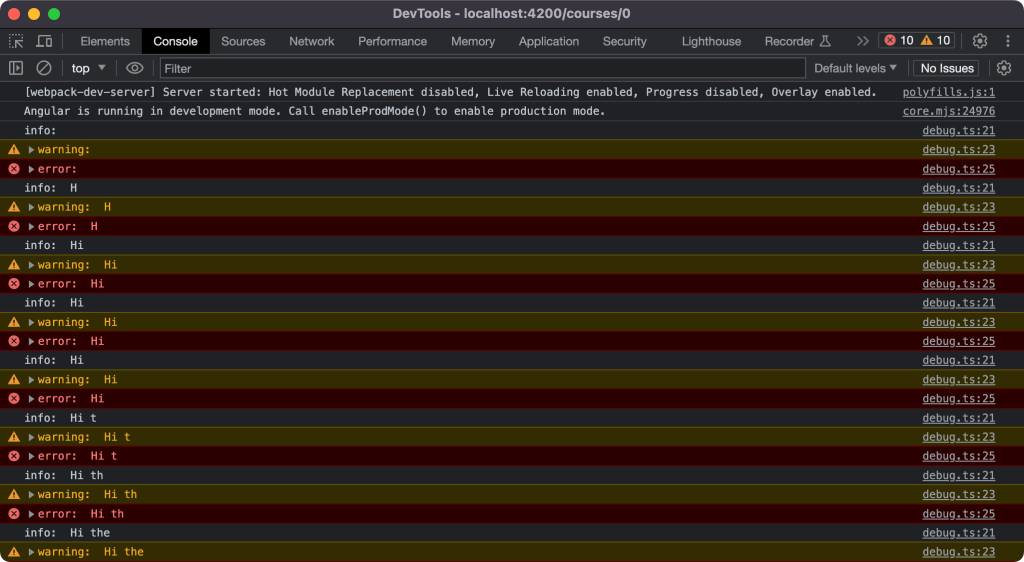
Now, as you type in the input search you should see the logging statements on the console, like below.

Our custom RxJS debug operator is working!!.

10 tips for improving the performance of Angular applications

1) Use Angular CLI’s production build: When building your Angular application for production, use the Angular CLI’s –prod flag. This enables various optimizations, such as AOT (Ahead-of-Time) compilation (latest angular-cli’s have AOT enabled by default), tree shaking, and minification, which can significantly reduce the bundle size and improve runtime performance. Read more about AOT compiler here.

2) Lazy loading: Implement lazy loading for modules in your application. Lazy loading allows you to load modules on demand, reducing the initial bundle size and improving the application’s startup time. Read below step-by-step guide to create the lazy loading modules.

Step 1: Create a feature module

Create a feature module that you want to lazy load. For this example, let’s assume we have a module called DashboardModule.

// dashboard.module.ts

import { NgModule } from '@angular/core';
import { CommonModule } from '@angular/common';
import { RouterModule, Routes } from '@angular/router';

import { DashboardComponent } from './dashboard.component';

const routes: Routes = [
  {
    path: '',
    component: DashboardComponent
  }
];

@NgModule({
  declarations: [DashboardComponent],
  imports: [CommonModule, RouterModule.forChild(routes)]
})
export class DashboardModule {}

Step 2: Configure lazy loading in the main routing module

In the main routing module (usually app-routing.module.ts), configure lazy loading for the DashboardModule using the loadChildren property of the route.

// app-routing.module.ts

import { NgModule } from '@angular/core';
import { RouterModule, Routes } from '@angular/router';

const routes: Routes = [
  {
    path: 'dashboard',
    loadChildren: () => import('./dashboard/dashboard.module').then(m => m.DashboardModule)
  },
  // Other routes...
];

@NgModule({
  imports: [RouterModule.forRoot(routes)],
  exports: [RouterModule]
})
export class AppRoutingModule {}

Step 3: Update the app component template

Update the app component template (usually app.component.html) to include a link to the lazily loaded module.

<!-- app.component.html -->

<h1>Welcome to the App</h1>

<a routerLink="/dashboard">Go to Dashboard</a>

<router-outlet></router-outlet>

In the above example, when the user clicks on the “Go to Dashboard” link, Angular will load the DashboardModule lazily. This means that the module’s code will be loaded only when the user navigates to the /dashboard route, reducing the initial bundle size and improving the application’s startup time.

Lazy loading is a powerful feature of Angular that helps optimize the loading and performance of your application, particularly when dealing with large and complex projects.

Remember to configure the routes and lazy load the modules based on your application’s specific requirements.

3) Change detection strategy: Consider using ChangeDetectionStrategy.OnPush for components where possible. This strategy allows Angular to perform change detection only when input properties change or when triggered explicitly. It reduces the number of change detection cycles and improves performance.

import { Component, OnInit, ChangeDetectionStrategy } from '@angular/core';

@Component({
  selector: 'app-my-component',
  template: `
    <h1>{{ title }}</h1>
    <p>{{ content }}</p>
    <button (click)="updateContent()">Update Content</button>
  `,
  changeDetection: ChangeDetectionStrategy.OnPush
})
export class MyComponent implements OnInit {
  title: string;
  content: string;

  ngOnInit() {
    this.title = 'Initial Title';
    this.content = 'Initial Content';
  }

  updateContent() {
    this.content = 'Updated Content';
  }
}

In the above example, the ChangeDetectionStrategy.OnPush is set in the @Component decorator’s changeDetection property. This informs Angular to use the “OnPush” change detection strategy for this component.

With the “OnPush” strategy, change detection will only be triggered when there are changes to the component’s input properties or when explicitly triggered using events like button clicks or HTTP responses. This can help reduce unnecessary change detection cycles for components where the data doesn’t change frequently.

Note: This strategy to work optimally, ensure that the component receives input properties as immutable objects or make use of the Immutable.js library to create immutable objects.

By using the ChangeDetectionStrategy.OnPush strategy, you can optimize the change detection process and improve the performance of your Angular application.

4) TrackBy function: When using Angular’s ngFor directive, provide a trackBy function to optimize rendering. The trackBy function allows Angular to track the identity of items in a list, making updates more efficient and avoiding unnecessary re-rendering of unchanged elements.

import { Component } from '@angular/core';

interface Item {
  id: number;
  name: string;
}

@Component({
  selector: 'app-my-component',
  template: `
    <ul>
      <li *ngFor="let item of items; trackBy: trackByFn">{{ item.name }}</li>
    </ul>
    <button (click)="updateItems()">Update Items</button>
  `
})
export class MyComponent {
  items: Item[];

  constructor() {
    this.items = [
      { id: 1, name: 'Item 1' },
      { id: 2, name: 'Item 2' },
      { id: 3, name: 'Item 3' }
    ];
  }

  trackByFn(index: number, item: Item): number {
    return item.id;
  }

  updateItems() {
    // Simulating an update to the items array
    this.items = [
      { id: 1, name: 'Updated Item 1' },
      { id: 2, name: 'Item 2' },
      { id: 3, name: 'Updated Item 3' }
    ];
  }
}

In the example above, we have an array of Item objects displayed using ngFor in an unordered list (<ul>). We provide a trackBy function in the *ngFor directive to optimize rendering.

The trackByFn function is defined in the component and takes two arguments: the index of the current item and the item itself. In this case, we use the id property of each Item as the unique identifier for tracking.

By providing the trackBy function, Angular can track the identity of each item based on its unique identifier (id in this case). When the array is updated, Angular can identify which items have changed, allowing it to update only the necessary elements in the DOM, rather than re-rendering the entire list.

This optimization can significantly improve the rendering performance, especially when dealing with large lists or when items in the list have complex structures.

Remember to choose a unique identifier for your items that remains stable across updates, such as an id property.

5) Use Angular’s built-in optimization techniques: Take advantage of Angular’s built-in optimization techniques, such as Angular’s built-in directives (ngIf, ngSwitch, etc.), pipes, and template caching. These features are optimized for performance and can help improve the overall application performance.

6) Avoid unnecessary bindings: Minimize the number of two-way data bindings ([(ngModel)]) and event bindings ((click)) in your templates. Excessive bindings can result in unnecessary change detection cycles and impact performance.

7) Use trackBy with ngFor in large lists: When rendering large lists using ngFor, make sure to use the trackBy function and provide a unique identifier for each item. This helps Angular efficiently update the list when items are added, removed, or reordered.

8) Third party libraries: Minimizing the use of third-party libraries and optimizing their usage is an important aspect of improving the performance of Angular applications. Here are a few things to consider:

  1. Bundle size impact: Third-party libraries can significantly contribute to the size of your application bundle. Each library adds its own set of dependencies and code, which can increase the initial loading time of your application. Choose lightweight libraries whenever possible and avoid using multiple libraries that provide similar functionality.
  2. Optimize imports: Import only the necessary modules, components, or functions from a third-party library instead of importing the entire library. This can help reduce the bundle size and improve loading performance. Many libraries provide modularized exports, allowing you to import only the specific parts you need.
  3. Tree shaking: Take advantage of tree shaking, a process that eliminates unused code during the production build. Ensure that your third-party libraries support tree shaking, as this can significantly reduce the bundle size by removing unused code and dependencies.

9) Optimize heavy computations: Avoid performing heavy computations or complex operations within Angular templates. Move such calculations to component classes or services to offload the rendering thread and improve overall performance.

10) Use Angular Performance Tools: Angular provides various performance tools to help identify and optimize performance bottlenecks in your application. These include the Angular DevTools, which provide insights into change detection, component rendering, and memory usage, and tools like Lighthouse, WebPagetest, or Chrome Performance tab for measuring and analyzing application performance.

By following these tips, you can significantly improve the performance of your Angular applications and provide a better user experience. Remember to profile and measure your application’s performance to identify specific areas for improvement and prioritize optimizations based on your application’s needs.

Building interactive charts with AmCharts in Angular

AmCharts is one of the widely used JavaScript-based interactive charts and maps programming libraries and tools. In this post we will look at how to integrate the AmCharts into Angular project.

Prerequisites

Before getting started, make sure you have the following dependencies installed:

  • Angular CLI: This is used to create and manage Angular projects. If you don’t already have it installed, you can install it by running npm install -g @angular/cli.
Step 1: Create a new Angular project

To create a new Angular project, open a terminal window and run the following command:

ng new ng-amcharts

Replace ng-amcharts with the name of your project. This will create a new Angular project with the specified name and install all the necessary dependencies.

Step 2: Add the dygraphs library to your project

To use AmCharts in your Angular project, you’ll need to first install the dependencies. Navigate to the project’s root directory and install the AmCharts library using npm:

cd ng-amcharts
npm install @amcharts/amcharts4 --save
Step 3: Configure AmCharts in Angular

Open the angular.json file in the project directory and add the AmCharts scripts to the scripts array:

"scripts": [
  "node_modules/@amcharts/amcharts4/core.js",
  "node_modules/@amcharts/amcharts4/charts.js",
  "node_modules/@amcharts/amcharts4/themes/animated.js"
]
Step 4: Create a new component

Generate a new component to display the chart by running the following command:

ng generate component chart
Step 5: Implement the chart component

Open the generated chart.component.ts file and import the necessary AmCharts modules:

import { Component, OnInit, NgZone } from '@angular/core';
import * as am4core from '@amcharts/amcharts4/core';
import * as am4charts from '@amcharts/amcharts4/charts';
import am4themes_animated from '@amcharts/amcharts4/themes/animated';

Next, for the chart component class and implement the chart logic:

@Component({
  selector: 'app-chart',
  templateUrl: './chart.component.html',
  styleUrls: ['./chart.component.scss']
})
export class ChartComponent implements OnInit {
  private chart: am4charts.XYChart | undefined;

  constructor(private zone: NgZone) {}

  ngOnInit() {
    this.zone.runOutsideAngular(() => {
      am4core.useTheme(am4themes_animated);

      // Create chart instance
      let chart = am4core.create('chartdiv', am4charts.XYChart);

      chart.paddingRight = 20;

      let data = [];
      let visits = 10;
      for (let i = 1; i < 366; i++) {
        visits += Math.round((Math.random() < 0.5 ? 1 : -1) * Math.random() * 10);
        data.push({ date: new Date(2018, 0, i), name: "name" + i, value: visits });
      }

      chart.data = data;

      let dateAxis = chart.xAxes.push(new am4charts.DateAxis());
      dateAxis.renderer.grid.template.location = 0;

      let valueAxis = chart.yAxes.push(new am4charts.ValueAxis());
      valueAxis.renderer.minWidth = 35;

      let series = chart.series.push(new am4charts.LineSeries());
      series.dataFields.dateX = "date";
      series.dataFields.valueY = "value";

      series.tooltipText = "{valueY.value}";
      chart.cursor = new am4charts.XYCursor();

      let scrollbarX = new am4charts.XYChartScrollbar();
      scrollbarX.series.push(series);
      chart.scrollbarX = scrollbarX;

      this.chart = chart;

    });
  }

  ngOnDestroy() {
    this.zone.runOutsideAngular(() => {
      if (this.chart) {
        this.chart.dispose();
      }
    });
  }
}
Step 6: Create the chart template

Open the generated chart.component.html file and add a element with the id set to “chartdiv“:

<div id="chartdiv" style="width: 100%; height: 500px;"></div>
Step 7: Style the chart component

Open the generated chart.component.css file and add any custom styling you require.

Step 8: Use the chart component

Open the app.component.html file and add the component tag to use the chart component.

<app-chart></app-chart>

And, also don’t forget to declare the chart component in the app.module.ts!!.

That’s it! You have now created an interactive chart using AmCharts in Angular. Go ahead and configure the chart settings, data, series, axes, cursor, and scrollbar based on your specific requirements.

Note: AmCharts is free with one limitation. You can consider buying a license!. PFB screenshot.

Conclusion:
  • We have created a sample angular project using angular-cli.
  • We have integrated AmCharts into Angular project and added a simple line chart component with sample data.

Checkout Github repo for complete code sample!.

Visual Studio Code (vs-code) essentials.

This is how I use the Visual Studio Code (vs-code) as a web developer.

VS Code is a widely used and free IDE that is beloved by the open web community. If you’re a web developer and haven’t heard of or used it before, you may be living under a rock the size of Mount Everest! Just saying… As a web developer myself, I use this IDE frequently and thought I would share how I use it in case it’s useful to others.

Note: There are many articles, posts, and YouTube videos available to help you get started with VS Code and even become a pro. However, I am documenting my own experience with the IDE solely for my personal reference.

Keyboard shortcuts

There is an excellent article about the 20 VS Code shortcuts for faster coding. Any developer loving the VS Code IDE should at-least know few of these shortcuts!!.

Extensions

Below are the list of the extensions I currently use and they are awesome.

Auto Rename Tag
Better Comments
GitLens
JavaScript (ES6) code snippets
Add jsdoc comments
Atom One Dark Theme
Prettier – Code formatter
Github repositories
Angular Language Service
Git Patch
Peacock

Inbuilt features

Below are few of the inbuilt features of the VSCode that you should start using now.

Terminal
Git source control
Command palatte (Cmd + p)